Showing posts with label PC. Show all posts

7 Reasons to Clean Your Windows PC Registry

The registry is the most important component of your Windows PC and it's sensitive as well. But what is it all about? The Windows Registry is simply a database arranged in hierarchy and the settings for everything on your Windows PC is stored on it. It can be hardware, software, and user profiles configuration information. Another work of the registry is to control and manage the working of all programs installed on your computer.

You can say that Windows system cannot work without the help of the registry. Whenever you boot the system, all the registry is read into memory. It means the role of the registry starts from the boot-up of the machine. When it's corrupted or malfunctions, your system won't work properly or won't even boot.

Having said that, it is paramount to regularly clean your Windows PC registry to keep it free from unwanted entries which clusters around it. If you are a little bit techy or conversant with it, you can do this without installing any third-party software or app but if you aren't sure of what you are doing, you can use apps that let you achieve it seamlessly.

Registry cleaners are apps/software that provide you with an easy, efficient and reliable method to scan and clean the Windows registry. They ensure high performance of your system as your PC remains error free. Some of the best Windows registry cleaners are CleanMyPC, RegClean Pro, CCleaner, Registry Booster. Apart from cleaning your PC, cleaning your house is important as well, thanks to cleaning service Chicago.

7 REASONS TO CLEAN YOUR PC WINDOWS REGISTRY

1. Uninstallation of Apps

Do you know that whenever an application is installed on your PC, it creates several entries to the registry? Once that is done, the said application works properly. However, when you uninstall that same application, some of these entries remains in the registry's database thereby creating problems of increased database size which makes your computer to slow down, sluggish and slow to respond to certain commands.

2. Old Entries

Similarly, all the tasks you perform on your computer generates and record entries in the database which increases overtime so you have to regularly run a scan and clean them up to keep your PC fresh and in optimal performance.

3. Program Re-installation

Any time an application is re-installed, some keys are added without deleting the keys that were added to the first-time installation of that application. This again increases the size of the registry.

4. Vacant Spaces

Now, this is somehow strange. It's now obvious that whenever an entry is deleted, it leaves a vacant space. These unwanted spaces keep on building from time to time until it leads to registry fragmentation and makes it unstable. This causes the system slowdown and increases the data access time.

5. Malicious Entries

Viruses and Malware are enemies to PC owners and the reason is not farfetched. In this situation, when a virus, Trojans, spyware, malware, and adware attack your system, they automatically insert invalid entries in the registry. These entries generate system errors. Thus, they damage the registry and causes the system to breakdown.

6. Registry Keys That Are Almost Impossible To Remove

Most paid software comes with a license keys with agreement which wants you to enter the license Key to save license information on your system. Many spyware and malware programs also add irremovable entries to the registry. Thus, the number of keys keep increasing to cause the registry to an unstable system.

7. System Shutdown

Whenever your system boots, it moves the registry to system memory to ensure faster data access. But this must be noted that any changes done in the registry during the operational time, are updated to the system registry during the shutdown process. These registry entries get corrupted if there is a power failure or system crash take place or improper shutdown is done.

Therefore, a good registry cleaner is always a better option if you are not much familiar with the registry. It scans and cleans the registry and fragments it to make it compact also. It results in faster application response time and overall smoother PC performance. With time and due to various installations and un-installations in your system, many invalid registry entries are created.

Even accessing, moving or deleting files from your system create invalid registry entries. These entries may produce problems in your system and bulk your registry over time. A good registry cleaner scans your system for any registry errors, and if found then fix them. It also fragments the registry to keep it streamlined.

Best Microsoft Outlook Alternative for Email on PC

Best Email client programs alternative to Microsoft Outlook and free to read mail from your PC

When it comes to email clients to be installed on the desktop, there seems to be a real Microsoft monopoly because the first and only name that comes to mind is, without a doubt, Microsoft Outlook . This monopoly is entirely deserved because Outlook is, without a doubt, among the best programs but developed by Microsoft and the best client with which to organize e-mail. The only problem is that Outlook is part of the Office suite and therefore is not available for free .

Until a few years ago there was Outlook Express, a very basic but free mail client, which however is no longer developed and distributed by Microsoft (even Windows Live Mail that had replaced it since 2016 is no longer supported).

The function that makes Microsoft Outlook unique and important is that of the calendar and the management of the tasks to be assigned to people (Task and Event Management) also it is used in 90% of companies because it integrates with the Microsoft Exchange e-mail server (if you working in the company you will notice that internal contacts are shared by everyone). In addition there are several extensions and plugins for Microsoft Outlook that expand the possibilities of use.

All these qualities are very difficult to replicate on another program, but fortunately there are no free alternatives: in this guide we will show you the best alternative mail clients to Outlook that we can use for free and without limits, in one case without even installing nothing on the computer (in case we had the Windows 10 operating system).

Best alternatives to Microsoft Outlook

Below we can analyze and evaluate the free alternatives to be used instead of Microsoft Outlook . We are talking about alternative clients to download, install on the PC and use for free to manage e-mail and e-mails , without necessarily having to purchase the Microsoft Office suite to have office programs and to obtain Outlook (which remains the best program to use).

Windows 10 Mail app

As mentioned in the introduction, if we own a PC with Windows 10 we don't have to install any additional mail programs, since it is possible to use the integrated Mail app .

Mail app

If we don't find its icon in the system tray, just open the Start menu and search for Mail , so you can start the app of the same name. Once inside, you will be automatically logged in to the Microsoft account used on the operating system, so you can comfortably read Outlook mail from the interface of the app, modern and simple to use. Once opened, the app remains in memory and will show the arrival of new messages such as system notifications, so as not to miss any incoming e-mail messages.

To add other email accounts (such as Gmail or Yahoo! Mail) we will only have to open the app, expand the left side menu by pressing the icon with the three horizontal lines at the top left, click on the Account item and finally press on the Add account item , present in the right sidebar.

New account

To learn more about how to use the Windows Mail app to manage, send and receive emails, we recommend you read our guide Using Mail in Windows 10 as an Email app .

Thunderbird

If we are looking for an alternative free program to install on our computer, the best currently is without a doubt Thunderbird .

Thunderbird

Thunderbird is an e-mail client to be installed on the PC, developed by MZLA Technologies Corporation, a subsidiary company entirely controlled by the Mozilla Foundation, which also manages the famous Mozilla Firefox browser, among other things.

It is therefore a very flexible and customizable open source software , since it is possible to install extensions and additional components .

How Outlook Thunderbird supports POP, IMAP and SMTP, using a wizard to create mail accounts for all popular Web Mail services, including Outlook, Gmail and Yahoo! Mail.

Other features worth mentioning include: support for RSS feeds of news sites and blogs, management of newsgroups and integration with online calendars for Gmail, Outlook and other business synchronization services. The main advantage of Thunderbird is that it is possible to download the version for Windows, for Mac OS X and GNU / Linux . The numerous extensions for Thunderbird make this email client extremely customizable and full of features

Thunderbird becomes perfect in the home where it is absolutely up to Microsoft Outlook and certainly superior to the Windows 10 Mail app (in some respects too simple and not very configurable).

The problem, however, is in the corporate or corporate environment because, in offices, using Thunderbird requires a configuration that is not easy and where system administrator intervention is often required to be able to configure it correctly.

If you want to deepen the discussion on this email client, we invite you to read our guide Thunderbird, the most used and free email program on PC .

eM Client

eM Client is a little known program but it is absolutely capable of competing with Outlook and Thunderbird in the management of email accounts and in the management of synchronized calendars.

eM Client

This software has an interface very similar to Outlook, so it will certainly be opened by all users who are looking for a valid alternative to Microsoft's paid program without renouncing its conveniences and the simple and clean interface typical of the latest Office products.

Among the main features there is the possibility to customize the client's graphic theme and the support for POP and IMAP protocols, so that we can add all our mail accounts without too many problems, also seeing the automatic recovery of the configuration parameters for the vast majority of online mail services.

Among the other more interesting functions we find synchronization with Google Calendar, integration with some of the most famous social networks and the ability to import email messages from Thunderbird or from another email client on your computer.

Although less known, we advise you to give it a chance, given that on computers we will hardly find such curated, simple to use and powerful programs.

Other free email clients

The ones we have listed so far are the best alternative email clients to Microsoft Outlook to read mail from your PC: let's try them all until we find the one that suits our needs. In the unfortunate event that we did not like any of the programs already mentioned, we can try one of the free clients listed below:

  • MailBird is an excellent e-mail client described in detail in another article, very modern, light and clean, which works with all major mail providers and supports IMAP.
  • ClawMail is another valid email client that allows you to import messages and contacts from Outlook and any online mail service, also available in a portable version.
  • Pegasus Mail , celebrated and historic mail client for PC that supports multiple accounts and notifies you of new messages on the desktop.
  • Sylpheed is a small open source email client with support for IMAP and POP, with the ability to manage multiple accounts in a single interface simultaneously.

If we only use Gmail

If we only use Gmail accounts, instead of installing or configuring a thousand programs we can simply use the Gmail website .

Gmail

Even if it is not a client to be installed on the PC but only a web application accessible via an internet browser, Gmail is so full of features that it competes easily with any client. Gmail supports POP and IMAP and is fully integrated with the Google Apps suite.

What makes it better than Outlook is the clear advantage of an e-mail web client or its worldwide availability : wherever you go, whatever computer you use, you can receive and write emails from your Gmail mail account.

Perhaps many are unaware that there are many settings and functions on Gmail among which, one of the main ones is the ability to group conversations (hits and replies) and multiple replies to emails.

    Conclusions

    Ultimately, if you do not have Office at home and do not have Microsoft Outlook and if you want a nice complete program to manage emails from accounts such as Yahoo, Hotmail, Libero, Virgilio, Alice, Tiscalinet or other, we can install one of the programs seen in the guide, sure of the final result (you will hardly regret Outlook, especially in the home). In the business environment, however, these alternatives are probably not good or can be used only under certain conditions.

    Disk Defragmentation: How it works and its uses

    Until a few years ago, defragmentation was one of the most widely used methods to make a computer perform better. Although this is currently less important than in the past, file fragmentation on the disk can still, in the long run, make your PC extremely slow.
    In these cases, excessive disk fragmentation prevents the operating system from accessing files and information on the hard disk quickly and efficiently. What can be done in these cases? In addition to the special tool available with almost any version of Windows, there are also third-party software that helps in this regard. But before going into this, it is good to understand what is meant by disk fragmentation.

    Defragmentation: What Is Disk Fragmentation

    Saving data on the computer’s hard disk is a procedure that does not occur linearly. The archived data must gradually occupy the free space on the disk. Often, therefore, it also happens that a single file turns out to be too large and is, therefore “unpacked” and redistributed in different sections of the hard disk, perhaps physically very distant from one another.
    As it is logical, in the long run, this can create slowdowns in the functioning of the computer. If to read the same file (or anyway the files of the same program), the head has to physically cover large spaces on the hard disk, the loading times are greatly affected.

    How To Defrag Your Hard Drive

    defragmentation

    If you install and uninstall many programs or in any case after months and months of use of the computer, defragmentation is therefore recommended. During this particular operation, the hard disk is analyzed in all its surface and the various files are reorganized to bring back some order. In this way, the access times to the various files will decrease considerably and the speed of the device in use could benefit not a little from this.

    Defragment Directly From Windows

    Fortunately, Microsoft developers accompany each new operating system with a tool that is suitable for the purpose. To defragment directly from Windows, simply click on the Start button and, in the search field, type the word Defragmentation. Regardless of the version of Windows, something should appear that sounds similar to Defragment and optimize drives (Windows 10) or Disk Defragmenter (previous Windows).
    By clicking on the instrument in question, it is possible to have a general overview on the status of the fragmentation of the disk (or of the multiple disks/partitions) present.
    Besides some notions, it will be possible to select the HD (or one of those present) and click on Optimize (Windows 10) or Defragment disk (previous versions) to start the procedure. However, it must be pointed out that defragmentation has lost importance compared to the past. This consideration must be made mainly for two factors:
    • from Windows 7 onwards, Windows versions automatically defragment. It is therefore almost superfluous in most cases
    • defragmentation is not particularly useful for SSD media

    Why Don’t You Need To Defragment On MacOS?

    Even MacOS provides procedures to fight disk fragmentation. The operating system created by Apple periodically groups smaller files and places them in memory spaces suitable for their size, defragmenting the disk. At the same time, the same OS integrates the Hot File Adaptive Clustering function, able to find open files with a greater frequency, moving them to a memory location that allows a faster execution. To this, macOS integrates numerous other useful functions to counteract the fragmentation of files on the disk.

    When Is It Still Convenient To Defragment?

    Nowadays this operation is only recommended for a particular user niche. Who uses a rather dated version of Windows with mechanical hard drives, still needs to defragment with a certain consistency. In some cases, even in the mobile sector, this operation can be useful. Below we will report some software that, in different contexts, can be a more than a valid tool for defragmentation.

    SpeeDefrag

    Free and space-saving, SpeeDefrag is an app to support Windows utilities. In fact, it allows to make defragmentation faster by closing all the processes in operation that hinder the procedure. Very useful as a support for those who still use defragmentation using Windows tools.

    Defraggler

    This is an app developed by the guys from Piriform, already known to Ccleaner. It is a very functional software, as well as free and simple to use. Defraggler can concentrate its activity on folders or even specific files. In addition, it checks for errors on HD, empties the recycle bin before starting its work and can also exclude some specific files from defragmentation.

    Smart Defrag

    Smart Defrag is an alternative that allows you to plan automatic defragmentation, in addition to proposing some extremely advanced specific functions.
    Also, in this case, it is possible to exclude files and folders from the analysis, excluding the defragmentation of files that exceed a certain size.

    Disk Speedup

    Disk Speedup is able to operate on files not only of entire disks but also of individual folders. It also supports automatic defragmentation when the system remains idle for a certain number of minutes (a very useful option to take advantage of the time when the computer is on but not working). This is a free app although care must be taken: during installation, the installer may try to install other unwanted software.

    Smart Defrag Toolwiz

    With  Toolwiz Smart Defrag we rely on a small and simple software, which prefers practicality to frills. According to the developers, this tool would be about 10 times faster than the default Windows tool. Surely this is a very quick and practical tool to perform this task.

    Auslogics Disk Defrag

    Available both as an installable file and in Auslogics Disk Defrag portable mode, it works to arrange system files in areas that are easier to reach than HD. This allows for considerable advantages in terms of computer performance. Among the various tasks performed by the app, there is the possibility to check for errors on a partition with the chkdsk command, to optimize a hard disk, to exclude files or folders from defragmentation and much more.

    Top 7 Ways to Expand Your PC Storage

    There could be various reasons that affect your system performance negatively. It may include cluttered disk space, over occupied hard disk, malware issue, hardware & software issues and other similar problems. Here, we have discussed some effective steps to help you deal with performance issue if you have your system storage over occupied with a lot of unnecessary files & data. Following below mentioned steps, you can easily manage to recover GBs of disk space in a jiffy. While these steps are useful enough to help you recover valuable disk space, it doesn’t cause any performance or security issues. Let’s discuss some of these steps here.


    1. Use Disk Cleanup Utility: 

    Disk Cleanup utility is a useful addition on your Windows PC that helps you find and clean all unnecessary files on your system. It not only helps you find & clean unnecessary junk files, but it also helps you clean up obsolete system files. To use this utility, follow below mentioned steps.
    •        Search and select “Disk Cleanup” from the search box on the taskbar.
    •        Here, you need to select the drive that you want to clean up.
    •        Once you have selected the drive to clean on the pop-up window, it will scan that drive and display the results. Here, you will find all unnecessary files in that selected drive and space occupied by them.
    •         You can simply select the files & folders that you want to delete and press OK to delete them instantly.
    disk cleaner

    Source: techrepublic
    You can also click on “Clean up system files” button in the lower-left corner to get rid of all unnecessary system files.
    •          Once you click on this button, it will ask you to select the drive to clean unneeded system files.
    •         Once you have selected the drive, it will scan it and display the scan results on new Disk Cleanup window.
    •          Here, you can select the files to delete and press OK to get rid of them instantly.

    2. Delete Unnecessary Applications: 

    In addition to deleting unnecessary and junk files, uninstalling unnecessary apps is another effective way to recover valuable disk space. To uninstall any app on your Windows 10 system, simply follow these steps.
    •          Go to Start menu > Settings > Apps.
    •          It will lead you to settings window. Here, select Apps & Features option from the left panel.
    •         Now you will be able to see all installed apps on your Windows PC.
    •         To uninstall any of these apps, simply select it and tap on Uninstall button given just below it.

    Delete Unnecessary Applications
    Source: thewindowsclub

    3. Delete Duplicate Files: 

    Next easiest and safest way to recover disk space on your Windows PC is to find and delete duplicate files. To do this, you can do a manual cleaning of your PC or you can use duplicate file remover tools for instant and effective results. These tools work on smart algorithms to help you de-duplicate even the remotest corners of your system storage.
    delete duplicate files
    Source: gizbot

    4. Move Data to Cloud Servers: 

    This is another advanced step that helps you expand PC storage effortlessly. Here, you can move all your data to cloud servers to recover disk space on your system. Moving data to cloud servers, not only helps you recover disk space, but you can also access this data anytime from anywhere. It also provides strong encryption services to keep your data safe.

    move files to cloud
    Source: chittagongit

    5. Backup Data: 

    Just like you move data to cloud servers, you can also take backup of your data on external drives. This simple trick is practiced for years to keep data safe and recover precious disk space on your Windows PC.
    backup data
    Source: integranets

    6. Use PC Cleaner Tools: 

    In addition to deleting duplicate files, you can use PC cleaner tools as well to recover Gigabytes of disk space effortlessly. These tools help you recover valuable disk space and optimize your system for better performance. You can use these tools to find and delete all types of junk files on your system.

    7. Clean Recycle Bin: 

    This is another simple yet effective step that helps instantly recover some disk space. Whenever you delete any file on your system it is simply moved to system recycle bin. Here, it remains there until you permanently delete it from there. Thus, we suggest you empty your system recycle bin to instantly recover precious storage space.
    empty recycle bin
    Source: databacknow
    Conclusion: Some of the easiest steps to recover valuable disk space on your Windows system includes cleaning junk & duplicate files, uninstalling unnecessary applications, deleting obsolete old large files, using PC cleaner tools and more. Here, we have discussed some of these steps in detail. If you know more such effective steps, then feel free to comment below.


    EaseUS Data Free Recovery Software Review

    There are times we mistakenly delete or even format files from our PC and wish to recover those files but don't know how to go about it. You don't need to worry no more in such situations because you can now use EaseUS Data Recovery Software to get back any deleted file from your PC for free.
    EaseUS data recovery Software

    The free edition of EaseUS Data Recovery Wizard is a one-stop & free data recovery software to recover files up to 2GB data in size.

    The File recovery software can can recover deleted files or folders even when they have been emptied from Recycle Bin, recover data due to format, lost partition, system crash, virus attack, etc.

    The recovery power of EaseUS is tremendous because of the fact it can restore files from formatted disk, dynamic disk, deleted or lost partition with original file names & storage paths for free which you can rarely get from other free data recovery software.

    The software has a wizard mode which makes the data recovery process easy for everyone to use including non-tech savvy and novice.

    EaseUS Data Recovery Wizard Free Edition supports data recovery from hard disk and other media, such as Memory card, USB flash drive, or SD card under Windows 2000, XP, 2003, Vista, 2008, Windows 7, 8. What's more, it supports dynamic disk and all file system FAT12, FAT16, FAT32, NTFS/NTFS5, exFAT, HFS+ and EXT2/EXT3.
    Using EaseUS data recovery Software

    Is EASEUS DATA RECOVERY FREE?
    The software comes in two versions - the free edition and the professional edition. The free edition can recover accidentally deleted files as well as data from damaged or formatted hard drives. It can recover data from your hard drive, USB drives, memory cards, and other storage devices.
    However, the professional editing offers users unlimited data recovery at just $69.95. This makes EaseUS one of the best data recovery software free at the moment.

    COUNTRIES ELIGIBLE TO USE EASEUS SOFTWARE
    The software is freely and commercially available for download and usage around the world with no restrictions from any country.

    HOW TO RECOVER FILES WITH EASEUS DATA RECOVERY WIZARD
    The recovering process is made easier with the recovery wizard. Follow the below steps;
    ✔️ Launch EaseUS data recovery software
    ✔️ Select the disk from which you want to recover data and click "Scan" to search for all the lost and existing files.
    ✔️ The quick scanning process will start
    ✔️ Now choose the lost data found by this recovery tool after scan and click "Recover" button to retrieve them back.
    ✔️ After that, you will see all recovery files.

    HOW TO RESTORE LOST FILES FROM WITH EASEUS DATA RECOVERY WIZARD
    ✔️ Connect your Android device to PC.
    ✔️ Install and run EaseUS MobiSaver for Android and connect your Android phone to the computer with USB cable. ...
    ✔️ Then Scan the Android phone to find the lost data.
    ✔️ Check and recover data from Android phone.

    SOFTWARE DETAILS
    Name: EaseUS Data Recovery Wizard
    *&Version: 12.0
    Categories: Utility and Operating System / File Management
    Download Name: drw_free.exe
    File Size: 39.96
    Downloads: 4000000+
    Pricing: Free with 2GB Data limit
    Professional: Unlimited
    Rating: 4/5

    WHERE CAN I DOWNLOAD THE SOFTWARE?
    ✔️ Download EaseUS Data Recovery software from this link

    **CONCLUSION**
    This free data recovery software ensures safe and precise format and delete recovery against numerous threats like: Drives that have been formatted or corrupted, missing critical file system structures, file deletion, application crash, computer viruses, partitioning or boot-up problems, damage due to a power failure or surge etc. When the data loss disaster strikes, that's when Data Recovery Wizard Free Edition does its amazing job. The tool is a must-have for every PC user.

    Intel Unveils Hexa-core Processor For Laptops

    Intel Corporation is an American multinational corporation and technology company headquartered in Santa Clara, California, in the Silicon Valley. It is the world’s second largest and second highest valued semiconductor chip makers based on revenue and they are also the inventors of the x86 series of microprocessors, the processors found in most personal computers (PCs). Intel supplies processors for computer system manufacturers such as Apple, Lenovo, HP, and Dell.

    Intel also manufactures motherboard chipsets, network interface controllers and integrated circuits, flash memory, graphics chips, embedded processors and other devices related to communications and computing.
    Intel processor

    At an event in Beijing on Tuesday, Intel unveiled its first-ever, 8th-gen, Core i9 processor for laptops. The Intel Core i9-8950HK has six cores and 12 threads, making it Intel’s first hexa-core CPU for laptops. It’s clocked at 2.9GHz but comes unlocked (meaning you can overclock it) and is capable of turbo frequencies (Intel’s lingo for boosting performance a little bit more as long as the processor is not overheated) of up to 4.8GHz. The 12MB of cache and support for DDR4-2666 RAM should also help speed things up.

    In real-life terms, Intel’s 8th-generation processor brings significantly faster gaming and 4K video editing; for the i9-8950HK specifically, Intel claims an overall 29% performance increase over the previous generation of Intel processors.

    The new processor also comes with Intel’s Optane tech which increases memory and storage performance, as well as Intel’s 300 Series Chipset, which has integrated fast Gigabit Wi-Fi.
    8th gen intel chip Hexa-core

    Here’s the bottom line: This chip is significantly better, in most areas, than any Intel chip found in a laptop today. Once this chip starts making it into actual laptops (likely gaming-oriented beasts), it will be a very interesting option for all the power users out there.

    For the less ambitious, the company also launched new, 8th-gen Core i7 and i5 processors (all of the new processors are based on the company’s Coffee Lake platform). The new i7 chips have 6 cores and 9MB of cache, while the i5 processors have 4 cores and 8MB of cache.
    Ref: marshable.

    Download Remotr To Play PC Games On Android, Windows Mobile And iPhones Devices

    Hello game lovers in the house, you are reading this interesting article because you are a gamer - whether hardcore gamer or a starter, i have brought another interesting one for you to make your gaming experience more entertaining and fulfilling. Imagine how it feels playing or controlling wonderful PC games like PES 16 , FIFA 16, PES 17, Axiom Verge, The warriors of legends, Batman, Dead Island, Devil may cry and lots more on your mobile phones. I know you will really enjoy it so that's why you are reading this now.

    With technology advancing every day and new apps being developed to solve one problem or the other, we get to find out some unprecedented amazing stuffs we can do on our smartphones to make it smarter and more enjoyable. Yes i know there are emulators that allows you run android apps on PC but this one is very different in another dimension.

    So we all are aware that running android applications on your PC is very easy at the moment with the help of many emulators which Bluestack is one of them. Not just that because you can as well run iOS apps on your PC smoothly with the help of emulators also. Since we have been running our mobile apps on PC, have you thought about doing the opposite which is running your PC applications on your android devices? Okay, let me just tell you right now that is possible to run PC apps on your phone. So follow me along.

    How Is It Possible To Run PC Games On Mobile Phones?
    I know it is not easy but with the help of an application called "remotr", you can easily remote PC games on your android, iPhone and windows phone devices. What am i saying? this app makes it possible to "play any PC game on android, iPhone and windows mobile". Remember, it is not just limited to games but you can also stream through anything on your device, (no matter the quality) as long as it begins or runs from the PC first.

    How Remotr Works
    The Remotr program allows users to stream high resolution or definition (HD) graphic intensive games right from your PC to your android, tablets, iPhone, iPad or windows mobile phones and it as well allows you to play games using gesture input for smartphones that has the functions and some other pre-configured button presets; it is also customizable so you can as well customize yours to your liking.

    In fact this Remotr program is amazing as you can even connect multiple devices to work at the same time. The whole process is cool and the gaming or streaming is very fast with seamless experience. So let's get down to the main trick now that you have known all the stuffs and information about this trick.

    Watch the video guide below


    How To Play PC Games On Android, iOS And Windows Mobile Phones

    Step 1
    Download Remotr exe program for your PC computer

    Step 2
    After downloading it, install the program and create a new account with them from their website

    Step 3
    After that, download the remotr app for your mobile device:
    For Android users, Download Remotr apk android app here

    For iPhone & iPad users, Download Remotr iOS app here

    For Windows mobile users, Download Remotr app for Windows phone here

    Step 4
    Having downloaded the specified app for your device, login with the account you created on your mobile device

    Step 5
    Now select your computer and also the PC games you wish to run on your mobile

    Step 6
    Finally, configure your settings and you’re good to go.

    READ ALSO 📖

    ✔ Best Windows Phone Apps You Shouldn't Do Without

    ✔ How To Create A Non Deletable Folder On Your PC

    ✔ Are You Ready For PES 2017?

    ✔ Checkout Amazing Android Phone Games You Should Download

    With this, you can start "playing PC games on your mobile and cell phones" just as you do with mobile apps on your PC. Apart from playing games, you can as well remote the games on your SmartTV.

    Trick To Access Computer’s Hard Drive With Your Android Phone

    Yes, you heard that right. You can access your computer’s hard drive with your smartphone in few simple steps.

    For this, you don’t have to download or install any big software on your PC or smartphone.

    Your Android’s file explorer can do the task easily

    The good thing with this tutorial is that you can copy and paste big files, software, and other things easily to your phone at high speed.

    LET’S TAKE A LOOK AT HOW THIS WORKS:

    To make this trick work, you should be connected to same network (Wi-Fi).

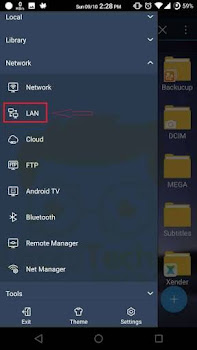
    Step 1⃣: Right click on the drive you want to share. Use the below-mentioned path to share this folder. You will see an icon appeared which mean the drive is shared.

    Properties> Sharing> Advance sharing>share this folder.
    public-access

    Step 2⃣: In order to access files from hard drive with smartphone open ES file explorer. Now click on the three line hamburger symbol then click on LAN access-files-PC-android-1

    Step 3⃣: Now perform a scan and you will see your PC if it’s connected to the same network. Now enter the username and password of your PC. There you will see the shared folder. access-files-PC-android-2

    Step 4⃣: Here you will see all the items in your computer’s drive. You can tap and hold to copy or cut any folder to your smartphone. access-files-PC-android-3

    Don't forget to share

    6 Things To Consider When Buying a Laptop

    For the contemporary tech-smart population, a laptop is often regarded as more than just a work tool. Many rely on the laptop for many purposes spanning social, entertainment, educational and business-related needs. This makes it imperative for the right decision to be made when shopping for a new device or a replacement unit for your old laptop.

    Though some things may weigh more than others depending on the purpose for which you are getting your laptop, here are six basic things to look out for when getting you next laptop.

    1. SIZE
    Gone are the days when laptops weighed a tonne and took up so much space. On-going advancements in the sphere of computer manufacturing has seen a lot of refinements in laptop sizes. For students and busy executives, portability is a core requirement. The easier it is to fit your laptop PC into a small bag, the better. Therefore, a laptop with a screen size between 12.5 – 14 inches and weighing between 1 – 1.5kg fits the bill.

    When shopping for such a portable device, it is often best to go for a notebook. A notebook is a personal computer that foregoes some functionality to remain light-weight and small. Notebook computers are sleek, typically weigh less than five pounds and are small enough to fit easily into your briefcase or a back-pack. An Ultrabook also falls into this category as they are portable and light-weight.

    2. PROCESSOR SPEED
    Most computer applications require that the computer system meets minimum requirements in order for the installation to run. One of those requirements is processor speed. Processor speed measures (in megahertz or gigahertz; MHz or GHz) the number of instructions per second the computer executes. Intel’s Core-based processors including Core i3, Corei5 and Core i7 are usually the best bet for computing power as these processors deliver top performance.

    3. SCREEN QUALITY AND RESOLUTION
    Considering the length of time the average user spends working on a laptop, screen quality is a factor worth taking into cognizance when buying a laptop. The harsh glare from grainy laptop screens may pre-dispose users to side-effects as constant staring at the screen may result in redness, itching and blurring of the eyes, or headaches and migraines, in extreme cases.

    Touch-screen laptops, many of which are glossy, may also not be a good choice as these throw back a lot of reflections, thereby putting the eyes under considerable strain. Closely related to this, you must consider the resolution of the laptop before making the buying decision. If you fall into the class of heavy users who work on their laptop for upwards of eight hours in a day, it is more advisable to go for a High Definition (HD) screen with resolution of 1600 x 900 or higher.

    4. RANDOM ACCESS MEMORY (RAM)
    This is a form of computer data storage which stores frequently used programme instructions to increase the general speed of a system.

    Depending on the type of laptop you wish to buy, a RAM of between 2G – 4GB and upwards will be required to get your system working optimally. Memory speed refers to the amount of time that it takes the RAM to receive a request from the processor and then read or write data.

    Generally, the faster the RAM, the faster the processing speed of your laptop. In other words, with a faster RAM, it is easier for you to use the laptop for your multimedia or multi-tasking activities. RAM speed is measured in Megahertz (MHz), millions of cycles per second, so that it can be compared to your processor’s clock speed.

    5. BATTERY
    Bearing in mind the peculiar power supply challenges in the country, you are better off investing in a laptop with a strong battery that can guarantee at least up to 10 hours of battery life on average use.

    For a notebook, a battery capacity of 10,000mAH/3.7V or higher is adequately sufficient to begin with, especially as both the total charging capacity and life of a laptop computer’s battery will diminish as you use your computer.

    6. PRICE
    Laptop prices are often predicated on the features of the device, especially the ones listed above. As such, a laptop with a faster processor speed and RAM would likely cost more than a model with less speed.

    However, increasing competition in the market and more attention to research and development of new products makes it possible these days to find moderately-priced devices boasting features that would naturally be found in more expensive models. ref

    Innjoo LeapBook M100 Specifications and Price in Nigeria

    Innjoo LeapBook M100 is a Light, thin and stylish 14.1-inch notebook device, it runs Windows 10 and it's powered by an Intel Atom x5 Z8350 Quad-core processor, its RAM is 2GB while the ROM is 32GB but also supports external microSD card of 32GB. The device uses 10,000mAh polymer battery which can keep it on in normal use for 8 hours or 6 hours in video playback mode but 300 hours in standby mode. Here is the full specs and price of the notebook.

    INNJOO LEAPBOOK M100 SPECIFICATIONS

    ✔️ KEY SPECS
    System: Windows 10
    CPU: Intel Atom x5 Z8350 Quad-core 1.44GHz up to 1.84GHz
    GPU: Intel HD Graphics Gen8-LP 10/12EU up to 600MHz
    Memory: 2GB DDR3L
    ROM: 32GB eMMC
    External Storage: Support 32GB Micro SD Card

    ✔️ DISPLAY
    Screen Size: 14.1-inch
    Resolution: 1366*768
    Touch Screen: N/A

    ✔️ CAMERA
    Front camera 0.3 Megapixel

    ✔️ POWER & BATTERY
    Battery Capacity: 10000mAh Polymer Battery
    Battery Type: Rechargeable li-Polymer Battery
    Recharge Type: Adapter
    Charger Type: 100V-240V Input, 5V, DC 3A Output

    ✔️ CONNECTIVITY
    2G: N/A
    3G: N/A
    WiFi: 802.11b/g/n wireless internet
    Bluetooth: Bluetooth 4.0

    ✔️ SIM SUPPORT
    SIM card: N/A

    ✔️ MULTIMEDIA
    Audio: 3.5 mm standard CTIA
    Mic & speaker: Built-in 8Ω/1W speaker*2
    USB: USB2.0*2
    HDMI: Yes
    RJ45: N/A
    Others: N/A
    Function
    Audio: MPEG-4 (.mp4, .m4a), AAC (.aac), FLAC (.flac), MP3 (.mp3), Ogg (.ogg), WAVE (.wav)
    Video: 3GPP (.3gp)/MPEG-4 (.mp4)/MPEG-TS (.ts, AAC audio only)/AVI (.avi)
    Language: Arabic, English, etc.

    ✔️ SENSORS
    GPS: N/A
    Gravity Sensor: N/A
    Proximity Sensor: N/A

    ✔️ DESIGN
    Colour: Moonlight Silver, Champagne Gold
    Dimensions: 334*220*18.2mm
    Weight: 1550g

    ✔️ WARRANTY
    Product warranty 1 YEAR

    ✔️ PRICE
    Price in Nigeria: ₦ 99,300.

    #InnJooLeapBook Now available in Nigeria. You can buy it from Jumia

    8 Ways to Fix a Frozen Windows Desktop

    Doesn’t matter for what purpose you are using a desktop but if it freezes it annoys everyone equally. We all are somehow associated with computers and if a computer freezes it may delay our important tasks. Think you have to rush to airport for your flight and you are trying to print your tickets suddenly your system got freeze. In the other scenario you just want to finish your work quickly as you have to go to pick up your kids from school but you cannot even leave your workstation because your system is freeze. There can be different reasons because of which a system gets freeze. So here are some common reasons for system freezing and fixes which you can apply if you are stuck with your system.

    HOW TO FIX A FROZEN WINDOWS DESKTOP

    1. Close the suspected program:
    If you are overburdening a program on your computer then it is very obvious that this program is responsible for freezing the system. For example, sometimes we open multiple tabs on a web browser which ends with system freeze and end up with killing the program. To avoid such situations, you should take care that you should not over burden any of the program on the computer also keep closing unused programs or tabs on the computer.

    2. Use task manager:
    If you are in the situation when you system has got freeze then do not forget to take help of the task manager. In most of the cases you will be able to access task manger no matter what is the reason behind freezing of your computer. You can easily access task manager by right clicking on the task bar and selecting “Start task manager” In the default window of task manager you will be able to find non responsive task. If it is not so, then you can go to performance tab and then to resource monitor here you will find deep detail about the programs running on your system with the RAM they are using and with the percentage of CPU they are using. From here you can end up a process taking maximum amount of system resources this will quickly un freeze the system but one thing you need to keep in mind that the process you are ending manually will loss all the unsaved information.
    windows-task-manager
    3. Try rebooting your computer:
    You can also try your luck with rebooting computer. In most of the cases if your system is freeze then start menu will also freeze still you can give a try to restart the computer from Windows itself. Shutting down computer also having a risk to loose unsaved information. In case soft reboot is not working hard reboot will always work. Press and hold power button for few seconds and you will notice that your system is turned off. Now you can turn it on and then you will be able to work on it smoothly.
    4. Fixing freeze keyboard or mouse.
    If you are not able to do anything using your keyboard and mouse, then there is a probability that your system is working fine but your key board and mouse has a connection problem. Check light under your optical mouse and press caps lock on your key board to make it sure both of them are working properly.

    5. Check for updates.
    If you have just removed from freeze system. Then you should check for Windows updates. In updates Windows release patch for software which make them to run smoothly. With the update operating system also becomes immune towards the viruses or malwares. So if your system freezes very often then you must check for operating system updates.

    6. Recently installed program may be responsible for system freeze:
    If you have recently installed a program or drivers on your computers then it may be because of them that your system has got freeze. Different programs require different hardware to run and if the software requirements of the new software do not match with Operating system on your computer then it may conflict with OS. Sometimes installing multiple anti-virus results in system freeze or blue screen of death. In this case entering to safe mode and uninstalling such program may help a lot.

    7. Cleaning temporary or duplicate files:
    When we use our computer for a long time our computer collects a bunch of duplicate or temporary files. Clearing such temp files time to time works as a preventive measure to stop the system from freezing. It is recommended the time to time you should clear browsing history of your web browsers and run disk cleanup which helps a lot in clearing temp files from all the drives. To remove duplicates there are duplicate file finder and duplicate photo finder software in market. You can use these duplicate file finders to find duplicates on your computer and they also provide an efficient method to clean duplicates in bulk. File started getting duplicate when we download the same file as an email attachment multiple times. Duplicates may be with different names but some duplicate finders are efficient enough to find duplicates on the basis of content in the files which is really awesome and allows our system to run smooth.

    SEE ALSO... 10 hidden Notepad Tricks You Might Not Know

    8. Disconnect power supply if nothing works for your:
    If your system has freeze and not even hard power button is working. Then disconnecting the power supply is the last resort. If you have connected a UPS, you can turn on the switch on UPS and your computer will be turned off. If you are on a laptop, then you can remove battery to turn it off immediately. However, it is not a good practice and if you do it very often then it may result is some hardware damage.

    This is how you can make your frozen system run. If your system freezes very often and you do not find anything unusual about software, then you should check hardware components and the first thing you need to check is the CPU fan because if it is not working properly system will be over heated and overheating will result in system freezing. A little of time to time maintenance of your computer can keep you away from system freezing.

    About The Author
    Yogesh Sharma is working as an SEO personnel 
    and technical content writer for Systweak. 
    He likes to talk about various threats to 
    cybersecurity and cybercrime awareness in his blogs.
    at http://blogs.systweak.com/

    Meet ZED Air iLife, The Slimmest Laptop in Nigeria | See Price

    The Slimmest Laptop in Nigeria has been launched by I-Life Digital Technology and it's called the ZED Air iLife weighing 1.53kg and 16.2mm thin. The laptop also comes in gold color with premium design.

    A brief information about I-Life Digital Technology; it is a US-based manufacturer of innovative range of computing devices such as Laptops, Tablets, mobile phones etc with a serious focus on design. Hence the beautiful designs we are seeing today from their products which ZED Air laptop is one of them.

    The ZED Air Laptop is thinner than a wallet making it a perfect companion for the upwardly mobile worker, entrepreneur, and student alike. The laptops comes pre-installed with the latest Windows 10 OS and internal circuitry and long lasting battery life- up to 8 hours that ensures performance meets endurance.

    As earlier stated, the laptop is just 16.2 mm thin and at only 1.53 kg, equipped with Intel Quad Core 1.8 Ghz Processor. Below is the configuration of the ZED Air iLife laptop.

    KEY SPECIFICATIONS
    • Series and Family: ZED AIR
    • CPU: INTEL Quad Core
    • CPU Internal Clock Rate: up to 1.83 GHz
    • CPU Core Quantity: 4 (Quad Core)
    • GPU: Intel HD
    • Installed RAM Storage Capacity: 2 GB
    • Internal Memory Size: 32 GB SSD
    • Display Size: 14-Inch
    • Display Resolution: 1366 x 768 pixels 16:9
    • Front Camera: 2 Mega Pixel
    • Interfaces: Micro SD, Micro SDHC, Micro SDXC, Micro USB, USB 2.0, Wi-Fi
    • Interface Wi-Fi: IEEE 802.11a/b/g/n
    • Interface Bluetooth: Bluetooth 4.0
    • Interface USB: 2 x USB 2.0
    • Interface HDMI: Mini HDMI
    • Interface Audio: 1 x 3.5 mm mini jack
    • Operating System: Windows 10.1
    • Battery Current Capacity: 10,000 mAh

    WHERE CAN I GET IT?
    Its available on Jumia and Konga from **N102,000 and above. So you can buy it at that price.

    ✔️ Buy from Konga here
    ✔️ Buy from Jumia here

    Will you rock this lappy?

    Microsoft Surface Book i7 Configuration, Specifications and Price

    MICROSOFT SURFACE BOOK I7 CONFIGURATION
    ✔ Processor: 2.4GHz Intel Core i5-6300U (dual-core, 3MB cache, up to 3GHz with Turbo Boost)
    ✔ Graphics: Intel HD graphics 520; Nvidia GeForce graphics (1GB GDDR5 high-speed memory) i7: NVIDIA GeForce GTX 965M 2GB GDDR5 memory
    ✔ RAM: options 8GB or 16GB RAM
    ✔ Screen: 13.5-inch, 3,000 x 2,000 (267 ppi) PixelSense Display
    ✔ Touch: 10 point multi-touch
    ✔ Storage: 256GB PCIe3.0 SSD Solid state drive (SSD) options: 256GB, 512GB, or 1TB
    ✔ Ports: 2 x USB 3.0, mini DisplayPort, SD card reader, mini headphone/mic combo jack
    ✔ Connectivity: 802.11ac 2x2 MIMO Wi-Fi, Bluetooth 4.0 LE
    ✔ Camera: Windows 8MP rear-facing auto-focus camera (1080p HD), 5MP front-facing Hello face-authentication camera (1080p HD)
    ✔ Stereo speakers with Dolby audio Audio Premium
    ✔ Up to 16 hours of video playback
    ✔ Weight: 3.48 pounds (1.58kg)
    ✔ Size: 12.3 x 9.14 x 0.51-0.90 (W x D x H) (312 x 232 x 13-22.8 mm)
    ✔ Pricing: Starting feom $1,299 USD

    Microsoft recently launched the Surface Book i7 with those impressive features up there. Although, in design, it looks like the previous Surface Book but it comes with powerful new internals and 30% more battery life with Microsoft claiming 16 hours of video playback.

    Additionally, It's a very good 'Gaming Laptop' and it's more powerful, and has a new thermal system so it can maintain its performance longer without any overheating experience. The price defers depending on the version you are going for as there is 3 variants with different RAM and Memory sizes.