Showing posts with label Android. Show all posts

7 Tips To Make Internet Connection Faster On Your Phone

Are you constantly experiencing slow internet connection on your phone? You can make it faster and improve the speed by applying the simple tips i will reveal to you on this article. Although most times slow internet connection is caused by the network providers due to poor equipment and stunted availability of the networking technology in some locations but you have your own part to play in order to boost internet connection.

First, you can check the speed of your connection here. Below are the seven (7) tips to make Internet faster on your smartphone.

7 WAYS TO MAKE INTERNET CONNECTION FASTER


1. Set Your Network Connection to 3G or 4G

It is not news that 4G and 3G network modes are much faster than EDGE and 2G networks mode. One babe using very nice smartphone came to me and was very worried that her phone doesn't brows fast. In fact that she finds it difficult to upload photos on Facebook. She even suggested selling the phone thinking that it was a fault but when i collected the phone from her to check things out, I noticed this babe is on 2G network for many weeks and she wasn't even away that it can be changed. Then i switched her to 3G and the network connection improved drastically. You see, some few phone users are ignorant of this.

So to speed up your data connection speed, you need to change your preferred network connection to 3G, WCDMA or 4G instead of GSM or EDGE

2. Uninstall Unnecessary Apps

Are you aware that many Android applications uses internet connection to work and to make things worst, some uses the Internet in background even when you aren't using the app. These apps drags the internet with other more useful apps which you constantly use on your phone so why allow such apps to remain installed in your phone?

I advise you to uninstall all the apps you don't normally use because they don't only slows the Internet connection but also makes your phone's performance slow as well as zapping your data unknowingly.

SEE ALSO... Test Your Internet Speed With This Fast dot Com

3. Clear the Cache in Your SmartPhone

This one might be controversial because in most cases, cache boosts internet speed especially with web browser apps, WhatsApp and Facebook. This is because these apps don't need to reload those saved data once you launch them thereby saving the time internet requires on your phone for processing information. But in some rare cases, cache can work alternatively so you might consider clearing cache memory.

Interestingly, clearing cache helps boost your phone performance as well as giving you more phone memory space especially if you are always short on device internal storage. To clear cache, go to phone Settings > applications > select apps > tap on clear cache. Note that this step might be slightly different from phones with different OS versions.

4. Activate Text only Mode in the Browser

I could remember some years back when I was using the 10mb data allocation from MTN to browse on opera mini using Nokia Symbian phone. Surprisingly, that 10mb serves me for complete one week because i usually browse without images turned on.

So if you are in a situation that demands you must read something online with very low data size available om your phone, just enable "text only mode" and restrict background data on your android phone. You will see the magic of what 5MB can do.

Apart from that, when you disable images from your web browser, your internet connection speed increases drastically but the browsing experience is not that cool. So if you are don't have problems browsing without images displaying or if you have very little data on your phone, apply this simple trick; otherwise, browse normally with images and enjoy what you are reading.

5. Use a Faster Web Browser on Your Phone

The web browser you're using plays a major role in enhancing the overall internet connection speed in your phone. There are many fast web browser available on Playstore for you to download and make use of.

You can try out Opera Mini, UC Browser, Google Chrome and Puffin Browser. They are arguably the most popular web browsers out there so try using them for browsing.

6. Install Internet Speed Boosting App

There are many internet speed boosting apps on Playstore. Try downloading any of them to help in boosting internet connection.

SEE ALSO... Download Internet Speed Meter Lite Apk

7. Turn Off and On Your Internet Connection

Lastly, to speed up your phone internet connection speed, toggle the data switch to ON and OF it. Alternatively, enable "flight mode" and disable it again after 3 seconds. As weird as it sounds, this is one of the beat working remedy to combat slow internet connection.

Once you apply this trick, you should experience an improved connection but remember all the above tips doesn't apply to people staying in areas with no network signal at all (if there is such places)

So ladies and gentlemen, there you have it. I hope this will help to solve the problem of slow internet connection speed on your mobile phone. Help other people with these tips by hitting the SHARE buttons below.

How To Backup Your Contacts On Android for Free

Contacts backup is very important and vital because one day you may be desperately in need of your lost contacts. You can loose your contacts through phone theft, damage, viruses etc but with a good backup, you can easily access and restore all your contacts for free.

What Is The Best Method Of Phone Contact Backup? In recent times, the number of contacts in our phones has increased and it keeps increasing with time so SIM backup is no longer a viable option because some SIM cards are limited to store about 250 contacts. Also if you choose to store or backup your contacts in your phone memory, it might not be the perfect place to do so because the phone could be infected by virus and demand flashing which will result to the wiping out of all saved data in it. So the best way to backup your contacts is via cloud either with google app called "Google Contacts" dedicated for it, your Gmail or even Dropbox.

Backups stored in these places are more safer and accessible anywhere in the world. Virtually every Android device comes with Google Contacts application pre-installed on them. Every person with google account can use this app to Backup all the contacts on his or her phone to cloud.
Backup contacts on Android

HOW TO BACKUP YOUR CONTACTS ON ANDROID
✔️ Open the Google Contacts application on your phone but if you don't have it, you can download the app here and then use the icon on the top left with three horizontal lines to display the side menu
✔️ Select Settings from the options that displays
✔️ A new screen will appear in which there are many possibilities of configuration, but the one that you should use to create a backup of the contacts of your Android is what is called Export
✔️ If you have several accounts in your Android terminal, a window appears in which you can choose the one you want to use.
✔️ Now you have to click on the button called Export to VCF file (which offers great compatibility with other applications, such as Outlook)
✔️ The next step is to choose the destination in which the file will be stored, which can be the Downloads folder of the device itself (by default) or, if the side menu is sold, you can choose the Drive account that has been activated
✔️ Press on Save or Export and the backup will be done automatically
✔️ That's all. You have successfully created a backup of your contacts on Android.

In conclusion, this is a must-do for everyone to avoid stories that touches.

Huawei Will Stop Providing Codes To Unlock Device Bootloader

Before now, we usually use Codes to unlock Bootloader of Huawei phones in order to root them and customize to our liking but that will now be a bygone as Huawei has announced it will officially stop providing all Bootloader unlocking codes to developers and its customers.
Huawei honor Bootloader unlock code

Few weeks ago, Huawei removed the page that provided codes to unlock the bootloader on Huawei and Honor devices but users were still able to get the unlock codes by requesting for it through email.

However, in the company's latest announcement;

“To provide a better user experience and avoid problems caused by ROM flashing, the unlock code application service will stop for all products launched after 2018-5-24. For products released before this date, the service will stop 60 days after this announcement.

Thanks for your understanding. We will continue to provide quality services”
Huawei Bootloader code announcement

This means that for devices launched after 05/24/2018 this page will not offer the unlock codes, while for those launched before that date they have 60 days to request it if they wish before the service ceases.

CHECKOUT SOME HUAWEI SMARTPHONES BELOW:
✔️ Huawei P20 Pro
✔️ Huawei Honor 10
✔️ Huawei P20 Lite.

So Huawei users should already be prepared to say goodbye to rooting and installation of custom ROMs on their devices. It's quite unfortunate.

Full List of Smartphones That Supports Android P (Android 9.0)

The latest version of Google's Android Operating System is Android P otherwise called Android 9.0 which succeeds Android 8 Oreo.
Smartphones that supports Android P

Unsurprisingly, not every Android phone supports Android P OS that's why I am listing all the smartphones that currently supports Android 9.0. This post will be updated as new phones are released with Android P compatibility.

The Android P (Android 9.0) is the next major version of Android and it is slated to arrive sometime in Q3 2018. Android beta releases are traditionally only been available for Google’s Pixel and Nexus phones, but that was changed this year with the introduction of Project Treble.

Now the Android P beta is going to be available for all of Google’s recent Pixel phones as well as 11 phones from other OEMs.

LIST OF SMARTPHONES THAT SUPPORTS ANDROID P

✔️ Google Pixel
✔️ Google Pixel XL
✔️ Google Pixel 2
✔️ Google Pixel 2 XL
✔️ Essential Phone
✔️ Nokia 7 Plus
✔️ OnePlus 6
✔️ Oppo R15 Pro
✔️ Sony Xperia XZ2
✔️ Vivo X21UD
✔️ Vivo X21
✔️ Xiaomi Mi Mix 2S

Note that Nokia recently introduced the Android P update (beta) to three of its phones not listed in the list above: the Nokia 6.1, Nokia 7, and Nokia 8 Sirocco, even though it’s only available in China. The beta test is slots are quite small, so it’s likely many Nokia users won’t be able to test the Android P update on their phones unless Nokia opens up more slots.

6 Smartphones With 6000mAh Battery Capacity 2018/2019

Personally, I admire phones with long lasting battery and I believe you won't blame me because the state of power supply in Nigeria is not even helping matters. I'm not ready to be charging phone every hour or carrying phone chargers everywhere in a quest to remain online and reachable. In this post, I will show you 6 Smartphones with 6000mAh Battery capacity or above.

As expected, two Gionee Smartphones made the list because the brand is well known for releasing phones with good battery in their M-series line ups. Other brands that made the list are Oukitel, Ulefone, Homtom and Blackview.
Smartphones with 6000mAh Battery

6 SMARTPHONES WITH 6000MAH BATTERY CAPACITY

1. Gionee M5
The Marathon M5 is one of the best selling Gionee smartphone in Nigeria, India and China because of its good battery life and durability although the main issue with the phone is screen repair fee which costs about N23,000. I advise owners to always use tampered glass screen case and 360 pack to protect the device for breaking. The Gionee M5 features 5.5″ AMOLED display, MT6735 chipset, 13 MP primary camera, 5 MP front camera, 6020 mAh battery, 32 GB storage, 3 GB RAM etc. You may check the full specifications and Price of Gionee M5 here

2. Homtom S99
The Homtom S99 isn’t too popular in Nigeria but that doesn’t take away the glory of the outrageous 6,200mAh battery supported on it. Homtom S99 Key Specs and Features includes; 5.5-inch IPS LCD capacitive touchscreen, 1440 X 720 pixels. Android 8.0 Oreo. Octa-core MediaTek MT6750T CPU with 4GB RAM. 64GB built-in storage, up to 256GB with a memory card. Dual 21MP and 2MP rear camera and a 13MP front camera. Fingerprint sensor (rear). The price of Homtom S99 phone is $129 (N47,000) .

3. Gionee M6s Plus
The second Gionee phone on this list is the Marathon M6s Plus which is the bigger sibling of Gionee M6. The M6 plus is a stunner smartphone from the Gionee brand that boasts of 6,020mAh battery capacity. Zero time is wasted as the smartphone charges quickly through the Quick Charge 3.0 technology. Want to know more about this beast? See full specs and price here

4. Blackview P2
Here’s another brand that’s not really hot on the lips of Nigerians. This Chinese brand has in its lineup the Blackview P2 with 6,000mAh battery. See complete specs here

5. Ulefone Power 3s
Ulefone Power 3s’s packs an amazing 6350mAh battery capacity as well as quad cameras. It runs on Android 7.0 Nougat, powered by MediaTek Helio P23, has 4GB RAM, 64GB ROM and the price is in the region of N100,000

6. Oukitel K6000 Plus
Another smartphone company that focuses on big Battery is Oukitel. The Chinese OEM launched the Oukitel K6000 Plus with 6000mAh Battery capacity, in fact that is where the name K6000 was derived from. It's Similar to K7000 where the battery capacity is 7000mAh. However, the battery life of this smartphone is actually above the 6,000mAh limit, specifically 6,080mAh capacity. You can check the full specs and price of the phone here.

That's it. I hope you now know some of the phones with big batteries than can last for 3 days on heavy or average usage. Now, help others know about this by hitting the share buttons. Thanks.

Best Android Locker Apps for Your Device Security in 2018


While your smartphone device stores lot of important and sensitive data, it becomes important to follow some security measures to keep it safe from prying eyes and cybercriminals. To do this, locker apps for Android plays an important role to keep your data safe on Android device. Let’s discuss some of these effective apps here.

Locker for Whats Chat App: Try this best locker app for Android to keep all your data safe at WhatsApp app. It offers dual security features where it helps you lock WhatsApp app with password further you can create second password to lock chats within it. This smart tool is intuitively designed to provide the enhanced user experience. In addition to that, it also offers password recovery option to get your password details back when needed. You can use this nifty tool to get instant and effective results. Download Here.
locker for whats chat app

CM Locker: CM Locker offers enhanced security features to keep your Android device safe. It helps you lock your screen from intruders with patter, PIN or password. In addition to that it also supports fingerprint lock option. Its intruder selfie feature snaps photos of intruders when they try to unlock your device with wrong passcode. Its anti-theft feature helps you locate your lost device and set siren for privacy security. You can try this locker app for Android to personalize settings on your device to change look and feel. Further, it offers notification reminder & instant reply to instant messages and weather forecasts. Download Here.
CM app locker

AppLock: Use this one of the best phone lock apps for Android to keep your data secured on your Android device. It helps you lock apps with pattern, password or fingerprint lock. It offers secure vault to keep your pictures, videos and other data safe. It offers incognito browser where it doesn’t record any history and private SNS to log in to multiple accounts. Further, it offers customizable background and profiles to improve your device look & feel. In other features, it offers intruder selfie, time lock, location lock, hide AppLock icon, advanced protection, random keyboards, force stopped cover, quick look switch, lock system settings and more. Download Here.
app lock

Vault: Vault is perfect app locker for Android that offers extensive security features to keep your data safe. It helps you protect your photos, videos, SMS, contacts, call logs and other important data seamlessly. It further offers security to your social apps, telephone apps and other apps for better security. It offers private browsing option where no traces will be left after your browsing. It also offers private bookmark feature to keep your browsing safe. Its cloud backup feature helps you keep your data safe on cloud servers. Here you can access this data anytime anywhere. As it offers cloud backup feature, you can transfer all your data on new device effortlessly. In other features, it offers multiple vault & fake vault, stealth mode, break-in-alerts and password recovery options. Download Here.
vault

LOCKit: LOCKit works on advanced techniques where it offers number of security features to keep your data safe on Android device. It offers photo safe vault and video safe vault to keep your private photos & videos safe from prying eyes. Its intelligent privacy protection feature can help you scan your device privacy status and protects all your secrets in real-time. It offers a fake cover feature to disguise any of your apps from the lock screen. Further, its notification cleaner and notification lock features are useful enough to manage notifications on your device. In other features, it offers free themes, lock apps, lock system, lock Google Play Store lock incoming calls, notification bar, hide pattern draw path, multiple language support and more. Download Here
lockit

Conclusion: Locker apps for Android offer reliable solution to keep your data safe on Android device. These powerful apps offer a bunch of useful features not only to secure your data but also improve your device performance significantly. Here, we have discussed some of these effective apps. If you know more such apps feel free to comment below.

Article Summary : Locker apps for Android offers an instant and reliable solution to keep your data safe on your smartphone device. It helps you protect all types of data in secured encrypted vault for better security. Let’s discuss some of these effective apps here.

Author Bio: -  Chandra Shekhar Choudhary is working at Systweak Blogs, as an SEO analyst and technical Content Writer. His potential of writing is PC tips, Android and Mac tricks and he is anxious in writing other technical blogs. You can also find Chandra Shekhar on Facebook, Twitter and Instagram.

Author Name – Chandra Shekhar Choudhary
Chandra Shekhar Choudhary


What Is The Difference Between Android One And Android Go Edition

In recent times, we come across terms such as "Android One" and "Android Go Edition" which confuses most of us to the extent that someone asked whether they are different from the normal Android OS we are used to. In this post, you will be cleared on this issue and you will know the difference between the two terms in a very simple and concise explanation.
Difference between android one and android go

DIFFERENCES BETWEEN ANDROID ONE AND ANDROID GO EDITION

ANDROID ONE: For devices with Android One, Google actually offers software development services to manufacturers. So perhaps a handset maker like infinix is good at building hardware, marketing, and has retail experience, but they’re not good at software. In this case, Google offers them Android One and commits to sending updates and security patches for an agreed time period, directly to the handsets. Android One gives a stock Android experience.

Examples of phones running on Android One includes; Infinix Hot 2, Motorola Moto X4, HTC U11 Life, Nokia 8 Sirocco, Xiaomi Mi A1, Nokia 7 Plus, Nokia 6.1, Y!Mobile X1/X2/S1/S2, General Mobile GM6/GM5/GM5 Plus, Google Pixel 2 XL, Google Pixel 2...

ANDROID GO: Devices with Android Go doesn’t come directly from Google – Google sends it to a handset maker like Nokia, and then Nokia releases it. This also means that Nokia has to release updates and upgrades when they’re pushed out from Google, adding in a delay that isn’t there with stock or Android One.

Examples of phones running Android Go includes; Alcatel 1X, Nokia 1, General Mobile GM 8 Go, Lava Z50, ZTE Tempo Go, Micromax BHARAT GO, Itel P32, itel A32F, Itel A15...

WHICH ONE IS BETTER BETWEEN ANDROID ONE AND ANDROID GO?
It all depends on what you can afford. A device with a low Specification like 8GB of storage and 1GB of RAM is batter running on Android Go.

While devices with with Specifications like 16GB of storage and 2GB of ram is better running on Android One

I hope this helps clarify your doubts and questions on this context.

How To Backup Android Applications And Files With Titanium Backup APK


The greatest mistake you can make on your phone is not having a titanium backup or any other backup on your phone. Thanks there is Google cloud backup now that makes it more easier to backup your device data in google's drive for free. Once there is a backup of your apps, data or even ROM, you won't be worried any time your phone crashes, you lost your phone, it bricks or you mistakenly delete an app on your phone. It will also help you restore your files whenever you flash your phone. It is just creating a copy of your phone data at the time you are backing it up just like when you create system restore point in your windows PC.
How to backup android applications

Note: Titanium backup is not really as relevant now as it was few years back because Android OS has gone series of improvement over the years, now you can create backups of your phone without installing any third party app. This is because new Android phones now comes pre-installed with backup and restore tools.


BENEFITS OF HAVING A BACK UP Of YOUR PHONE APPS AND DATA WITH TITANIUM BACKUP
* You won't loose your apps
* Your app data and configurations will remain intact
* You can backup both system and user apps
* It will help you restore your apps and device to its previous state even after installing a new ROM

REQUIREMENTS
* Your Android phone
*  Your Phone must be rooted for perfect result
* Titanium backup apk Android app. Download it here
*  At least 60% battery charge
* Your brain.

HOW TO MAKE TITANIUM BACKUP OF YOUR ANDROID PHONE APPS
1. Launch the titanium backup app you just downloaded
2. Grant it root access when it asks (this is why your phone must be rooted. Though there is another method to backup your apps with titanium backup app without root your phone. But I prefer this method because it works perfect.
3. Click the Batch button. Itnis located in the upper right corner and it looks just like a small checkbox
4. Now scroll down to the Backup section and look for backup all user apps
5. Next thing you will do is to click on the run button.
The backup process will begin and you will see it reading. Remember you chosed  user app which means all the third party apps which you downloaded from Google playstore will be backed up and ready to be restored any time you wish to restore them.

However, you can also backup your system apps which are those apps that were pre-installed in your phone when you bought it. Just choose backup system apps in the option if you want that.
Feel free to ask any question or request.

How To Uninstall System Apps In Any Android Phone

First of all, what is a system application? System app is an app that is pre-installed in any Android phone by the manufacturers of the phone. System apps in some cases are important while some are just scrap and used for adverts or partnership purposes and some of these apps might not be important to every user of the phone. The worst part of the whole thing is all the system apps in a phone cannot be uninstalled just like third party or apps you install by yourself. The only thing you can do to system apps is to disable it but I found out that disabling is not actually the ultimate solution.

PHONE TRICK: What Does This Code Do? *#*#4636#*#*

I have been using this code for a long time now especially whenever I want to check certain information about a particular phone without downloading any app. So today, I considered it wise to share with you because I'm sure some of you are not familiar with it.
*#*#4636#*#* phone trick

This secrete mobile phone code *#*#4636#*#* will help you see some useful information about your phone including monitoring your most used apps and network information. It's one of the top secret Android phone trick codes.

It's true there are apps that does this same function but what about achieving it without downloading an app but with a simple code? That's why I'm revealing it to you.

SEE ALSO: 4 Amazing Google Chrome Tricks

THINGS YOU CAN DO WITH THIS ANDROID PHONE CODE *#*#4636#*#*
✔️ Check your phone IMEI number
✔️ Your current network operator
✔️ Network Type (2g,3g,4g)
✔️ Run Ping test
✔️ Radio information
Code to check phone information

✔️ Battery Information
✔️ Battery capacity
✔️ Charging Status
✔️ Battery temperature
✔️ Battery health
✔️ Battery Voltage
✔️ Battery level
Code to check phone battery info

✔️ App usage statistics
✔️ WLAN Stats
App usage information

You can see that this code is very useful but many people don't know it existed.

This USSD code will be handy when purchasing a new phone, you can simply dial *#*#4636#*#* to check the information of the phone you want to buy even before the seller says "Jack".

SEE ALSO: Ten Android Phone Tricks You May Not Know

Was this helpful? Spread it by sharing with your friends on social media by hitting the share buttons below this post. Thanks.

Project Treble Support: List Of Android Phones Updated With It

First of all, what is Treble Support? According to XDA developers forum, Project Treble is a major re-architecture in the way Android works. In essence, it separates the Android operating system (the Android ‘framework’) from the vendor Hardware Abstraction Layers (‘HALs’) that allow for the OS to work with the device’s hardware. Before Project Treble, the Android framework and the HALs usually reside within the same area (the system partition). With Treble, the HALs are moved to their own area (a vendor partition) and now communicate with the Android framework in a more standardized way.
Android project treble
The benefit of this is that it allows for companies like Samsung, LG, HTC, and others to work on modifying the stock Android framework while they wait for vendors such as Qualcomm to provide updated HALs. Theoretically, this means that updates should happen more quickly.

But in a layman's definition and understanding, Project Treble Support sought out to help end fragmentation (or at least make updates much easier and quicker for OEMs) by taking the single OS framework and dividing it up into two separate ones: one that contains the core Android OS and the other would contain the OEM's UI modifications. Separating the two would theoretically make updates quicker.

It reduces the stumbling blocks and bugs encountered when phones are updated to new OS versions. We have experience of phones developing battery problems or overheating issues after update. But google is using this Treble stuff to tackle it.
Project Treble Support
ALL SMARTPHONES UPDATED WITH PROJECT TREBLE SUPPORT

Google
Google Pixel
✔️ Google Pixel XL

Honor/Huawei

✔️ Huawei Mate 9
✔️ Huawei Mate 9 Pro
✔️ Huawei Mate 10 Lite
✔️ Huawei Nova 2
✔️ Honor 7X
✔️ Honor 8 Pro
✔️ Honor 9
✔️ Honor 9i
✔️ Huawei P10
✔️ Huawei P10 Lite
✔️ Huawei P10 Plus

OTHERS
✔ ASUS Zenfone 4 – No vendor partition, so cannot flash GSI
✔️ Essential Phone
✔️ Razer Phone
✔️ Xiaomi Redmi Note 5 Pro

Devices unofficially updated with Project Treble support

✔️ Lenovo ZUK Z2 Plus
✔️ Lenovo ZUK Z2 Pro
✔️ Xiaomi Redmi Note 4 Pro
✔️ Xiaomi Mi 5
✔️ Xiaomi Mi 5s
✔️ Xiaomi Mi 5s Plus
✔️ Xiaomi Mi 6
✔️ Xiaomi Redmi Note 5/Redmi 5 Plus

Is your device among? As you can see there is no Tecno, Infinix, iTel or even Gionee on this list.

How To Enable Split Screen Function On Your Android Phone

Split Screen is sometimes called multiple window or double display. It allows you run two apps the same time in the same screen. In other words, split screen divide the screen of your phone into two equal halves and run two apps simultaneously. For example, you can be chatting on whatsapp and also watching YouTube videos on the same screen the same time. This article will teach you how to enable this feature on your Android device.
Android Split Screen

Of course, it was a herculean task to achieve this on older Android versions but when Google released Android 6 Marshmallow, some smartphone brands like Samsung and Gionee started embedding the split screen features in some of their devices. (for instance, Gionee M6 .)

More phone manufacturers embraced this feature when Android 7 was launched. Since then, the number of split screen smartphones has increased though there are still phones without this feature but there is a workaround to enable or activate it.

The Split screen function is also one of the most underrated functions on the nougat. This function is so important, it is also present on the latest Android 8.0 Oreo, but in a much more improved version.

Activating a split screen on an Android device running on Android 7.0 and above is a piece of cake if you know how to go about it, but an uphill task if you are a novice in that field. Here are some easy steps to activate and enjoy the function.

HOW TO ACTIVATE SPLIT SCREEN IN ANDROID 7+ DEVICES

Step 1: First you need to activate the "developer mode". This is not really compulsory, but it would help you force some apps that were not designed to work with the split screen function to work by force. To do this go to Settings > About this device > Build number. Once you are there, click on Build number a few times until you get a notice saying you are now a developer.
Double screen

Step 2: Once in the developer mode, scroll down to the end of the page and enable the option that says “Force activities to be resizable”. Once you do this, restart your device to activate the option. Once you have restarted your device, even those apps that aren’t usually compatible with the split screen option will be able to run in split-screen mode.

Step 3: Click on the recent button and click and hold any open app, then drag it to the upper part of the screen. Once you do that, you would see the screen has been divided into two.

Personally, i don't usually use the split features on my phone except once in a while. What about?

Uncertified Phones: Bad News For Android Devices On Custom ROM

Google, the owner of Android OS is very determined to ensure that every Android device is clean, certified and safe for use. Hence Google is disabling support for phones which are not officially certified by the manufacturer.

In other words, if you installed or flashed a custom ROM on your Android device, chances are that you may not be able to login to any google app or services anymore.
Uncertified Android phone

This was happening particularly to those who were using smartphones with unlocked bootloaders or running a custom ROM.

Today, Google has confirmed to Android Police the statement in which it acknowledged this practice.

"Certified Android devices offer users consistent experiences when using apps from Google and the Play Store… as well as Google Play Protect]. We acknowledge that some manufacturers are building and selling devices that have not been certified by Google."

This means that from now on, devices that are not certified with Google will be explicitly exempted from signing into Google Apps. This measure is to save you from some manufacturers that releases phones with secret bugs and security issues that could result to something more dangerous to the user.

Google also revealed that there is no cost in getting hardware certified so it's expected that every phone maker should have their products certified if it runs on Android Operating System.

If your phone is affected, you will see a message like this "this device is not certified by google" whenever you try to sign in to any google app.
Device not certified

And as you know, an Android phone is made up of Google apps including Gmail, Google Map, Google Search, Chrome, Playstore, Calender, Gsuites, Blogger, Google services, notifications and so on. If you are not able to sign in, your Android phone will be useless or won't perform optimally.

6 New Features Of Upcoming Android P Operating System

Google has finally announced Android P but it's currently only available for developers preview so as at the time of this report, it's not yet officially rolled out on any device.

Android P will be a successor to Android O which is gradually taken over Android 7. Though I think Google is faster in this pursuit of new versions because judging from the number of devices that are currently using Android O Oreo, you will discover that majority of Android users are yet to receive update for Android 8.
Android P

As expected, a new version should bring some excitements through new features and this version won't disappoint.

Meanwhile, while you wait for the actual release of latest Android P to the public, I think it will be a nice idea to give you a glimpse of some newly added features of the Android OS.

In this post, I have curated 6 amazing features that makes Android P different from previous Android versions.

FEATURES OF ANDROID P

1. Android P prevents secret recording activity on your phone:
One key benefit of this next version of Android OS is that it will prevent apps from using your smartphone’s microphone or camera whenever they’re in the background and not actively being used on screen.
If you have been worried about secret recording activity happening on your phone, Google has got your back with Android P. Whenever an app in the background tries to use your microphone or camera, a new security feature will trigger a notification to tell you and you can decide to let it happen or not.

So, Android P is big on user privacy. Are there any other new stuff? Yes; there are.

2. Display Notch Support
Notch display support was a trending feature at the Mobile World Congress 2018 in Barcelona. In case you don't know much about it, you can check my previous post on Notch display for more details. Google has now added support for display notch in Android P.

3. New Notification Panel
Android P OS has a new notification panel and improved messaging notifications.

4. Wi-Fi Indoor Positioning
Indoor positioning via Wi-fi means your smartphone will be able to measure the distance to multiple Wi-fi hotspots and use this information in indoor positioning apps to calculate the near exact location of the phone with an accuracy of 1 to 2 meters.

5. New Media Formats
Android P adds support for HDR VP9 Profile for video and HEIF image compression. These formats weren't available in previous versions but now available this version.
HDR VP9 makes it easier to watch HDR videos, while HEIF is a new image compression format that can compress images to less than half the size of a JPEG while maintaining higher image quality.

6. Multi-camera API
It's obvious that multi camera phones are trending now as we can see more phones being shipped out with dual, triple and even quad cameras.
Android P includes native support for multiple cameras.
Think of using twitter and wanting to share a quick selfie, so you call up the camera from inside the tweet you are composing. You will be able to use zoom or even bokeh in that situation.

A bonus feature is a Bluetooth HID device profile that enables your smartphone as an input device.

CAN I JOIN THE DEVELOPER PREVIEW PROGRAM?
You can join Android P Developer Preview here if you are a developer and need to test out things with your apps, you can download and use Android P Developer Preview.

Note that Android P won't be available to general public till the end of the year 2018.

What The Hell Is Notch Display In New Smartphones?

Notch display is an extra screen at the top end of a smartphone covering the front camera(s) area or leaving a little bezels to accommodate the cameras and sometimes sensors or the speakers.

The Notch screen is a perfect way for phone manufacturers to achieve full Bezel-less display which is trendy now. In other words, this creates a distinctive notch that cut into a portion at the top of the display.

From time to time phone makers try very hard to remove bezels from the front of their devices and this new design has metamorphosed to Bezel-less smartphones which are very beautiful.

The new design also introduced new technologies such as the face ID features which allows you to lock and unlock your phone with your face instead of using your fingerprint or password.

For instance, Apple ditched the fingerprint scanner in the iPhone X and replaced it with face ID. However, the "notch" in iPhone X was criticized by some sections of people as being awful and awkward but it's surprising to see that many other phone makers are adopting it and it has come to stay.

You may be wondering which company first introduced Notch display; well, it's not Apple. Yes Apple wasn't the first company to introduce the notch display but it was first seen in the Essential Phone 1.
Notch display

Although many people thought that Apple was the first to launch it hence they conclude that other manufacturers are copying Apple's notch screen but it's just a lie. Apple actually copied.

But it was not only the big players like Huawei and Asus that announced notch display phones at the event, smaller players like Wiko, Doogee, Oukitel, Ulefone and others got in the picture too.

Apart from the iPhone X and the essential phone 1, there are other smartphones that are currently parading the notch display and most of them were launched at the MWC 2018 in Barcelona.

OTHER PHONES WITH NOTCH DISPLAY
The Notch Display Phones Announced At MWC 2018 includes;

Wiko View 2 Pro: is the most intriguing on this list. It has a 6-inch bezel-less display with a 16 megapixel selfie camera embedded in the notch. It has support for face unlock.
Wiko has implemented a means of putting the space to the right and left of the notch to good use in certain apps. When playing music, using the camera, or taking a call, a top display bar pops up with interactive elements. The Wiko View 2 Pro will cost $365 or 299 euros.

Doogee V5: has a 6.2-inch bezel-less display. No price has been announced yet.

Leagoo S9 has a 5.85-inch display and will cost $125.

BlackView A30: is an Android Go smartphone that will cost $40. Yes; even cheap smartphones are catching the notch fever.

Noa N10: has a 6.2-inch display and Face ID. It will cost $366 or 300 euros.
Other notch phones that showed up at MWC 2018 include: Oukitel U18, Ulefone T2 Pro, Ulefone X, Vernee M7, iLA X, and Otot V5801. Ever heard of those last two brands?
In all, if I haven’t missed anything, that is a total of 13 notch display phones we are sure will hit the market in 2018.

For smartphone makers to implement the new notch display design, they have shifted the phone speakers under the bottom of the phone, they have also shifted the front cameras as high up as possible. Also the fingerprint scanner is now either embedded at the back or inside the screen. You will as well notice that most navigation buttons are now inside screen not as physical buttons but as a virtual buttons.

What do you think about this new design and the technology?

Is Dub Music Player App Also Your Best Android Media MP3 App?

It's weekend and you know how it is, enough grooving. Even if you are not going out to club, you can still have a nice time enjoying at the comfort of your house by watching your favorite videos and playing sweet music on your phone. This is one of the reasons i wrote about media Player that allows you play 4 videos at the same time on your Android device. But this time around I want to show you my favorite music / mp3 players.
Dub music player
Dub Music Player
So if I may ask, which app is your best for playing music 🎶 on your phone? Well, personally, I like apps that gives me a good blend of all the musical sounds especially the Bass. There are apps that can make even the worst of music to become interesting to listen because of the beautiful sound system it produces. There are apps that can make your so called "useless headset 🎧" to sound decently well. Interestingly, there are many apps for playing music now available on Google play so you aren't limited to one or two any longer as it used to be years ago.

Well, the best Android app for playing music on my phone is Dub Music Player. It is an offline and free music player for Android. It lets you play local Music files already on your SD card so you can't use it to stream music online, download or display lyrics but it serves the sole purpose of giving me absolute and fantastic base and surround sound system as if am in a high tech theater.

Major features that attracted me to Dub Player is the equalizer, bass booster, its ability to support all popular sound formats such as MP3, WAV, AAC, FLAC, 3GP, OGG, MIDI etc, stunning visual and sound spectrum, visualizer effect, and so on.

FEATURES OF DUB MUSIC PLAYER FOR ANDROID

✔ Create and edit playlist
✔ Browse and play music by songs, artists, albums, playlists, folders and genres
✔ 5 themes
✔Easy search function: Search music by songs, artists, and album
✔ Simple and effective interface, faithfully showing the visualization of your music played.
✔ Background music play (to keep playing your songs while you use other apps, or while your device is in stand-by mode)
✔ 9 predefined presets, based on different music genres
✔ Ability to save and delete custom presets
✔ Music progress bar for an easy navigation within the song you're listening to
✔ Repeat function to keep listening to your song over and over
✔ Shuffle function to plays songs in a random order
✔ Media volume control
✔ Home screen widget
✔ Lock screen widget
✔ Supports headset / Bluetooth controls for easy listening.
✔ Material design interface
✔ Edit tags
✔ Sleep Timer
✔ Set song as ringtone
✔ Volume Balance control
✔ Loudness enhancer (Only for Android version 4.4 and higher)
✔ Crossfade
✔ Speed control (Only for Android version 6.0 and higher)
✔ Pitch control (Only for Android version 6.0 and higher)

★ The available music equalizer presets:
✔ Hip Hop
✔ Rock
✔ Dance
✔ Pop
✔ Latin
✔ Metal
✔ Classical
✔ Flat
✔ Normal
Download Dub music player
You can download Dub Music Player app for Android via Playstore here.

Other closely related apps you should also look out for are poweramp, Pi music player, Boom player, VLC, Bass booster and equalize.

READ: How To Fix Glo Data Not Coming Up

So over to you, what/which is your best music player and why do you love it?
Happy weekend to you all.

Are You Getting Ready for Android 9.0 (aka Android P)?

Google is currently busy working on new Android 9.0 also known as Android P. According to reports, this version of Android OS will feature support for call recording both on the receivers and caller ends.

Call recording is actually not a new thing for mobile phone users but it seems this will come with more features better than the traditional call recording we are already used to.

HOW IT WILL WORK
Some code has been added to AOSP(Android Open Source Project) by Google’s engineers references the existence of a “call recording tone” that would presumably be played once users press the corresponding button in order to start recording their conversation.

The tone itself is said to be of the 1,400Hz variety, meaning people of all ages should be able to hear it without any issues, with one of the commits referring to it revealing that it’s meant to be played every 15 seconds while the conversation is being recorded, presumably as to remind the person who didn’t initiate the recording that it’s still participating in one.

The question now is this? Can your phone receive OS update? Funny but interesting thing is many Android users are yet to get Android 8.0 update and now a new version is on the way.
source Androidheadlines.

5 Reasons Why Your Phone Camera Suddenly Deteriorate

I have come across some people asking why their phone camera suddenly deteriorate after sometime. In many such cases, the cameras used to be sharp and clean but after some months of usage it becomes poor which results to blurred pictures.

In recent years, smartphone makers put camera in high consideration when making phones hence we now see camera centric devices. One of the companies that has produced this type of phone is Tecno Mobile. The Chinese smartphone OEM has the Camon series which basically focuses on camera quality and of course the picture quality from the Tecno Camon phones are superbe at initial stage but as time goes on, it starts deteriorating. This particular experience is not exclusively to Tecno but most other smartphone producers

So in this post, I'm going to show you the likely reasons why phone cameras deteriorats and worn out over time.

Some people may argue that phones from quality brands like Samsung and iPhone doesn't experience this same thing but by the time you are through with this post, you will see the hidden truth.

5 REASONS WHY YOUR PHONE CAMERA DETERIORATS OVERTIME

1. Dust Accumulation: dust accumulation on the camera sensor can result to resolution loss, pixels of false colors, noise, spots etc. So before you blame your phone makers for making low quality devices, ensure you clean up the sensor with a soft white cotton material.

2. Worn-out Moving Parts: the Worn-out parts leaving the sensor out of alignment can result to focus images loss, blurry and distorted images

3. Improper Maintenance: bad maintenance culture can lead to "burn-out receptors on the sensor" (which lead to "blank spots on the image, false-color pixels and resolution loss"

4. Dust in The Lens: When there is dust in the Lens, it could result to noisy, blurry and distorted images

5. Scratched or Destroyed Lens Coating: when this happen, it could lead to distortion or false colors due to ultraviolet and infrared radiation reaching the sensor.

As you can see, you can't completely blame it on the phone manufacturer because at times, the fault is from you, the owner. The way you handle your phone matters a lot.

Another reason is "false imagination". As new phones with greater and better cameras comes out, yours becomes too poor for your liking.

SEE ALSO: How to Use Your SmartPhone Camera as PC Webcam.

For instance, when I was using Nokia 6600, the camera was one of the best then but after a year when new phones starts coming out with upgraded camera features, I then started noticing my Nokia 6600 camera is not giving me a perfect photo as before. That's absolutely false imagination arising from the launch of better phones.

What do you think?

Truecaller Update: You Can Now Backup Your Contacts & Call History Easily

I am sure you wouldn't like to get stranded when you loose all your phone contacts as a result of not having a backup for it. It's one of the painful things that can happen to anyone because you will loose business colleagues, family members, friends etc in the process. So to avoid that regrettable scenario, you need to create a contact backup on your phone.

While there are many methods of creating contacts backups on Android, I am glad to let you know that popular caller ID app - Truecaller has added this exclusive feature to its app.

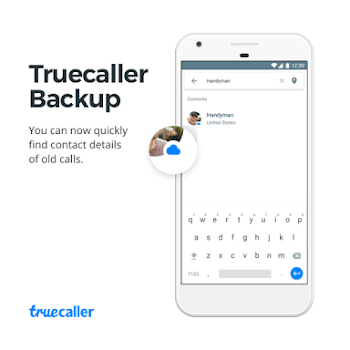
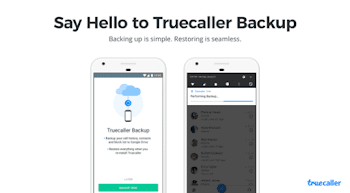
The latest update for Truecaller Android app now adds a contact backup feature that allows you create a secured backup of your phone contacts, settings, call history and logs to your Gmail account. You can choose to restore the backup anytime with the backup and restore wizard.

This feature will be very useful to you when switching to a new phone, getting a new SIM card, or resetting your device.

With the Truecaller backup, you will seamlessly transfer all your contacts from one Android device to the other without much stress.

HOW IT WORKS?
This feature works by creating a private folder on your Google Drive to store the backed up files. For security concerns, Truecaller claimed it doesn't have access to the folder containing the contacts that were backed up. So shouldn't be scared of any third party access to it.

HOW TO ACTIVATE TRUECALLER CONTACT BACKUP
✔ First, head over to playstore and update your Truecaller app
✔️ launch it and enable the feature via the wizard or within the app settings
✔️ Then select your Google account where you want the backup to be stored
✔️ Grant Truecaller access to Google Drive
And it will be done.

HOW TO RESTORE YOUR BACKUP
Maybe you got a new phone and want an easy transition from the former device to the new device without loosing your contacts, their names, numbers, call history etc; just follow below procedures.

✔ Add up the same Google account you used while creating the backup
✔️ Uninstall and reinstall Truecaller on your device and you'll be prompted to restore
✔️ Wait for the restore to finish and restart Truecaller

WHAT YOU NEED TO KNOW
✔ The backup restores Contacts, Call log, search history, Unknown numbers identified by Truecaller, App settings, Blocklist,

✔️ Pictures of your contacts won't be restored
✔️ It doesn't restore ringtones, as it's a system setting
✔️ Restoration is done during activation (through the wizard)
✔️ Backup is tied to your phone number and Google account
✔️ Backup frequency is by default set to weekly (daily and monthly can be set within the app settings)

SEE ALSO: Nigerian Firms Tops Truecaller Spamming List

NOTE: For this to work, you need the latest version of Truecaller on Playstore, then Google play services version 11.6.0 or above.
Ref.

12 Best Smartphones Expected to Trend in 2018

Smartphone companies made a lot of improvements, innovations and success in the year 2017 but 2018 promises to be a hit even better than the previous year. Having said that, there are some hugely anticipated smartphones that will trend in 2018 with features such as Full HD, face ID, 18:9 Bezel-less display, bigger RAM and internal memory.

However, other expected features of 2018 smartphones are Snapdragon 835 processor, Android 8.0 Oreo, wireless charging and bigger battery. At the moment, fingerprint sensors and 4G LTE are already common so they won't be a big deal in 2018.

So I have gathered the 12 Smartphones that are expected to trend next year and below is the full details.

1. Sony Xperia XZ Premium 2 (2018):
Expected Release Date: February – March 2018.

Sony is expected to release a higher version of its 2017 flagship device - the Sony Xperia XZ Premium and will call it Sony Xperia XZ Premium 2. The device is highly respected for its 4K screen and capable camera on a 5.5-inch LCD display. Rumor has it that Sony Xperia XZ Premium 2 will sport a new design and includes a 5.7-inch 4K display with support for HDR. Android Oreo Certified and 3,420mAh battery. We could also see the 18:9 Bezelless edge-to-edge display as well.
Sony Xperia XZ
2. Xiaomi Mi Mix 3:
Expected Release Date: Fall of 2018

If you recall, Xiaomi Mi Mix was among the first phones to spot the edge-to-edge, bezel-less design, then, the Mi Mix 2 followed suit but the company will definitely come up with better features for the Mi Mix 3 in 2018.
Xiaomi Mi Mix
3. Nokia 9
Expected Release Date: Spring 2018.

Nokia, now owned and controlled by HMD Global. They released some amazing phones this year and actually took the world by storm. Well, in 2018, we should expect more camera centric smartphones from the company and one of such is Nokia 9 with Zeiss optic.
Nokia 9
4. Huawei P11/Mate 11
Expected Release Date: Spring/Fall 2018.

Huawei P11 will bring an edge-to-edge display in a more affordable package than companies like Apple and Samsung, but we also expect Huawei to lead the way with its own Artificial Intelligence (AI) developments and with its own line of Kirin processors.

5. Moto Z3 Force
Expected Launch Date: Summer 2018

6. Essential Phone 2
Expected Release Date: Summer 2018
Essential phone
7. HTC U12
Expected Release Date: Spring 2018

When the world thought HTC is dead, they gave fans a new hope in 2017 by releasing devices no one expected from a company having financial problems. The HTC U11 is a great phone but we expect something more with the HTC U12. The device is likely to spot an edge-to-edge screen, better camera, higher Android version and of course, the processor.

8. LG G7/V40
Expected Release Date: Spring/Fall 2018

LG is a household name in the electronics industry. They launched LG V30 in 2017 with amazing design and features but could come up with more enticing features when they release LG V40 (G7) next year. At least, we will see a much improved camera features.

9. OnePlus 6/6T
Expected Release Date: Summer 2018.

We expect to see a better improvement and performance with OnePlus 6/6T

10. Google Pixel 3/3 XL
Expected Release date: Fall 2018.

Google dived fully into smartphone production and released some interesting Android phones in 2017 but we are anticipating the release of Pixel 3/3 XL which should be an improvement on the existing Pixel phones and of course, something very new.
Samsung Galaxy s9
11: Samsung Galaxy S9/Note 9
Expected release date: Spring/Fall 2018.
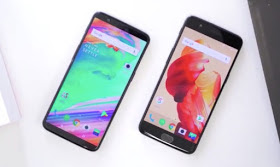
Samsung does not need introduction. Well, after the release of Samsung S8, the company started planning on another big project which will be delivered as Galaxy S9 and its larger-sized sibling, the S9 Plus in the spring of 2018, and the Note 9 in the fall. Reports has it that Samsung may include a revolutionary new under-screen fingerprint scanner and fix the terrible position of the fingerprint reader on the current S8/Note 8.

12. Apple iPhone Xs, 8s and 8s Plus
Expected Release Date: Fall 2018

Just like Samsung, apple needs no formal introduction especially after they introduced brands flagship device - the iPhone X which costs about $1,000. But in 2018, Apple may unveil iPhone Xs with even more features and of course, more expensive. Apple is known for introducing the latest phone designs, no wonder other brands copy them.

Ref

Which phone do you expect to use in 2018? And which feature do you really want your dream phone to have?