Showing posts with label Tutorials. Show all posts

How To Revive A Phone That Fell Inside Water


We are in raining season and this is the time that many people's phone accidentally gets wet either by dropping inside water or any other means. It is very frustrating and can paint the whole day black for the phone owner because virtually every phone that drops inside water automatically refuses to switch ON or work normally again and trying to force it to come up can tremendously increase the damage on the phone.

So here is the simple and basic steps you will take immediately your phone is soaked with water.


SECTION ONE (normal procedure)


STEP 1:  Remove the phone from the water as quickly as possible

STEP 2:  Clean it thoroughly with dry cotton cloth

STEP 3:  Remove the battery, sim card, memory card immediately

STEP 4:  Place the phone under the sun for 24 or 48 hours 

NOTE: Don't try switching it ON before this time!

STEP 5:  After the stipulated time, take it and insert the battery first; switch it ON. It should come up


SECTION TWO (funny but interesting method mostly for non removable battery phones)


STEP 1: Take the phone out of the water immediately

STEP 2: Wipe the surface of the phone with a paper towel


STEP 3: If its an iphone, do not remove the battery, because doing that would void the warranty, after wiping the surface of the phone just place the phone in a bag of uncooked rice for 24 hours, it will absorb the water, bring it out afterwards and you can now switch on 
If its not an iphone, ensure to remove the battery and any other detachable part of the phone before putting it in a bag of uncooked rice.

However, if all the above mentioned process didn't work for you, kindly take your phone to specialists to dry it.

Meanwhile, it's always advisable to always put on your rain jacket in Winter as it will also help protect your mobile phones and other important gadgets.
Good luck.


Never miss any future post from WizyTechs anymore, CLICK HERE TO SUBSCRIBE NOW to get instant updates next time on my new wonderful post. Once you 
enter your email, you will have to check your inbox for a confirmation message containing a confirmation link. Once verified, you will never miss any future updates or articles. Like us on facebook and Follow us on Twitter. 

Hope this info helps? Then share this post with your friends using the Facebook Share/Like/tweet icons below. You can share your thoughts by using the comment box

Android Problem Com.android.phone See How To Fix It

If you are a staunch Android user, you would have experienced this frustrating issue " Com.android.phone" unfortunately Android have stopped. If you have been facing this problem and have tried many methods to fix it but non worked, be happy as the solution to your Android problem is here waiting for you to implement it on your phone and solve the issue once and for all. Now follow the below steps to do it on your phone.

How To Unlock Any PC Software Serial Key With Universal KeyGen Generator

Universal keygen generator software
Gone are the days when PC users get stocked in some softwares with serial keys that are no where to be found. Now you can easily unlock any software with this latest universal KeyGen Generator. This app generates the serial keys of almost all premium and paid versions of softwares including PES, every version of microsoft office suits, Adobe photoshop software, Autocad software, Avast antivirus serial keys and many more PC softwares that uses serial key numbers. So feel free and don't panic as you can now unlock any software with no hassle.

How To Identify A Fake Memory Card (SD Card)


One thing is to buy a memory card and another thing is to buy an original one. Memory card sellers are not helping matters as they use their sweet marketing tricks to deceive unsuspecting customers who are novice when it comes to identifying an original memory card.
Imagine yourself buying a memory card and using it for only one day and it started giving you headache and you start experiencing memory card corrupted or formatting issues. Imagine buying a 32gb or 64gb SD card and in short time it starts misbehaving. Some memory card will be written 16gb but when you insert it on your phone, you will only see 2gb. That is crazy.
how to identify fake sdcard
There are a lot of fake SD cards out there in the market and many people fall victims to this. Buying SD cards with one problem or the other. One of the most annoying experience is memory cards that worked perfectly when tested in the store but once you get back home, it starts giving one problem or the other. But relax, I will show you how to detect a fake SD with some tools such as SD Insight and H2testw. But before then, see the first steps you will take while buying an SD card
fake and real memory card

THE BEST WAY TO BUY SD CARD
* Ask for warranty
This will make the seller to be cautious because he knows he will loose if anything goes wrong with the sd card within the warranty period. Some sellers will not even sell the product to you again immediately you demand for warranty. They will stylishly chase you away because they know that their product is not original.

* Test the SD card at the shop
This is if you are not buying it online. It is important you test your new SD card right in front of the seller. Try to receive a file into the sd card, check the memory space and others.
However, if you are buying from online stores like Jumia and Konga, you can place your order and pay when the SD card gets to you fine.

HOW TO DETECT A FAKE OR FAULTY SD CARD
1. With SD Insight
It is extremely difficult to know a fake or original SD card by mere staring at it. The packaging is confusing and will look like original to you but with SD insight app, you will identify a fake or an original SD card. The application is free, fast and easy-to-use mobile app. It is used to view SD card manufacturing details, the original size of the memory card and many other vital information you need to know about your memory card.

How To Use SD Card Insight
Put the memory card inside your phone and in seconds the memory card information will be shown to you on the phone screen in a simple format understandable by anyone.
1. You can download SD Insight right from Google Play store buy searching for the word SD card insight
2. Once you have installed the app, Insert any SD card that you want to test into your Android smartphone.
3. Now Launch the installed SD Insight application. Immediately, you will see the information about your SD card including the manufacturers, product name, manufacturing date and real size in a format that you will understand
4. Finally, you can click the menu button to view more real information about the memory card
5. Assuming you have more than one SD cards in your phone, you will easily be able to also see the details for each SD card.
6. Not just seeing the real size and manufacturing date but you can also look into the validation period of the memory card against the class rating for the minimum data transfer rate for example, the Class 2,  class 4, class 6 and  the class 10 SD cards

SEE ALSO: How To Repair a Damaged Sdcard

2. Checking Fake SD Card With H2testw Software
H2testw is simply a PC software that is used to test fake memory devices like SD cards, flash drives and even hard drives. It is a free application that requires no payment. You can download and install it on your PC and it will be a great tool for you anytime you want to check your memory devices.
H2testw software

How Does H2testw Work?
This great tool works by filling the chosen target drive with test data and then reads this data back to verify it the originality in it. It displays all the information you need including errors found on the SD card or memory drive as the case may be.

WHERE TO DOWNLOAD H2testw?
Download h2testw here.

How To Backup Android Applications And Files With Titanium Backup APK


The greatest mistake you can make on your phone is not having a titanium backup or any other backup on your phone. Thanks there is Google cloud backup now that makes it more easier to backup your device data in google's drive for free. Once there is a backup of your apps, data or even ROM, you won't be worried any time your phone crashes, you lost your phone, it bricks or you mistakenly delete an app on your phone. It will also help you restore your files whenever you flash your phone. It is just creating a copy of your phone data at the time you are backing it up just like when you create system restore point in your windows PC.
How to backup android applications

Note: Titanium backup is not really as relevant now as it was few years back because Android OS has gone series of improvement over the years, now you can create backups of your phone without installing any third party app. This is because new Android phones now comes pre-installed with backup and restore tools.


BENEFITS OF HAVING A BACK UP Of YOUR PHONE APPS AND DATA WITH TITANIUM BACKUP
* You won't loose your apps
* Your app data and configurations will remain intact
* You can backup both system and user apps
* It will help you restore your apps and device to its previous state even after installing a new ROM

REQUIREMENTS
* Your Android phone
*  Your Phone must be rooted for perfect result
* Titanium backup apk Android app. Download it here
*  At least 60% battery charge
* Your brain.

HOW TO MAKE TITANIUM BACKUP OF YOUR ANDROID PHONE APPS
1. Launch the titanium backup app you just downloaded
2. Grant it root access when it asks (this is why your phone must be rooted. Though there is another method to backup your apps with titanium backup app without root your phone. But I prefer this method because it works perfect.
3. Click the Batch button. Itnis located in the upper right corner and it looks just like a small checkbox
4. Now scroll down to the Backup section and look for backup all user apps
5. Next thing you will do is to click on the run button.
The backup process will begin and you will see it reading. Remember you chosed  user app which means all the third party apps which you downloaded from Google playstore will be backed up and ready to be restored any time you wish to restore them.

However, you can also backup your system apps which are those apps that were pre-installed in your phone when you bought it. Just choose backup system apps in the option if you want that.
Feel free to ask any question or request.

How To Uninstall System Apps In Any Android Phone

First of all, what is a system application? System app is an app that is pre-installed in any Android phone by the manufacturers of the phone. System apps in some cases are important while some are just scrap and used for adverts or partnership purposes and some of these apps might not be important to every user of the phone. The worst part of the whole thing is all the system apps in a phone cannot be uninstalled just like third party or apps you install by yourself. The only thing you can do to system apps is to disable it but I found out that disabling is not actually the ultimate solution.

How To Save Data When Using Mobile WiFi Hotspot

Mobile hotspot is gradually replacing modems in terms of Internet access on PC. I could remember some years back when it's compulsory that every laptop owner will also have a modem before he or she can browse/access the Internet with it but it's no longer the same story now as the introduction of smartphones has adversely changed a lot of things. You can now easily connect your mobile phone to your PC either via WiFi tethering, Bluetooth or USB cable connection and enjoy the speed especially when the phone supports 4G LTE Network.

However, some people are not very comfortable with this method mostly because wifi connection zaps data like crazy. I mean it doesn't look back but you don't have to worry, that's why I am showing you how to save data when using mobile WiFi hotspot. So follow me along as i reveal the key points for to you.

HOW TO SAVE DATA WHEN USING MOBILE WIFI HOTSPOT


✔️ Limit Multimedia Usage

On default, almost all smartphones and PC are set to automatically preload/download videos and images once they are connected to a WiFi hotspot. They did this because they think you are gonna be connected to a free WiFi so for you to use your personal WiFi which is charged from your data subscription, you definitely need to disable those functions in order to save data. Also avoid watching videos and music streaming. This is because more data is required for viewing and playing videos and music.

SEE ALSO... Don Jazzy Launches Free WiFi Service In Lagos Nigeria

✔️ Disable Automatic Updates

Remember to always turn off the automatic update on your PC. It may have been long your computer was updated, and immediately your system is connected to a hotspot, it will begin to update. Before you say, Jack Robinson, your data is exhausted.

✔️ End All Awaiting Downloads

You may be downloading a movie on a public Wi-Fi and you are unable to finish. However, you forgot to stop or end the download and you later connect your hotspot, the download will simply continue from where it stopped earlier with the use of your data.

✔️ Optimise Wi-Fi Settings

You should activate your hotspot for shorter low-power Wi-Fi. This will make it possible for data to be less consumed while browsing with hotspot.

✔️ Observe Data Level

Notwithstanding the fact that you have enough data on your phone, you should not ignore it when you connect your hotspot with your computer. You should always check it from time to time so that you will be aware of your data balance. This will let you know how to use it carefully and consciously.

✔️ Stop All Background Apps

Like your phone, your laptop also has background apps running. Some of these apps need internet to function optimally. So, end all background applications before you connect your hotspot.

ALSO READ... How To Use PdaNet Premium Version For Free

These are the ways to save data when you are using your personal data on mobile hotspot. I won't forget to recognize Jumia Travel for some of the tips here. I hope this article help you next time you are connecting to a WiFi hotspot. Enjoy!

Difference Between Water Resistant and Water Proof Phones

The popular Nigerian slangs "Water no get enemy" is not applicable to mobile phones and other electronic devices because once water enters inside a smartphone, it could render it completely useless if nothing was done immediately. But thank God for the advance in technology as In recent times, some phone OEM decided to make phones that can withstand the dangerous effects water on them either when immersed or when being beaten by the rain.
Water Proof vs water resistant phones
Water Resistant Phone
However, the confusing part of it is some of these phones are tagged "water resistant" while some are tagged "water proof" by the manufacturers. So I want to use this medium to clarify you and enlighten you on the difference between water resistant and water proof phones.

Another tech term we usually come across whenever phones with this feature are released is "IP68 certifications". So let's take a closer look of what it means and how it's related to this topic.

Meaning of IP68 certification

This certification is given to electronic devices that passes a certain level of test specially meant to check if the device is dust proof and water proof. In other words, all IP68 certified handsets are water proof.

But why do manufactures use the word water resistant and sometimes water proof?

Smartphone makers refers phones that are IP68 certified, and are designed in such a way that the ports are sealed (ports like audio jack, micro USB etc) come with a rubber cover that seals off the opening as water proof phones.

While they refer phones with IP68 certification and ports not closed as water resistant.

Difference Between Water Proof Vs Water Resistant

If your phone is IP68 certified and have all its ports sealed with a rubber material, it is water proof.
But if your phone is IP68 certified and all or some of the ports are open, it is water resistant.

SEE ALSO... Meet Kyocera Rafre Waterproof Smartphone

Summary
So in conclusion, there is really no much difference, a IP68 certified handset will survive under water as long as the basic requirements are fulfilled i.e. max depth / time under water etc.

Meanwhile, you need to be extra careful with the handset that are water resistant or the one that does not come with the ports sealed. You need to dry such handsets if they were submerged, and never plug in the power for charging for at least 24 hours – you need to be sure the ports are completely dry.

For handsets with ports sealed you don’t have to worry about, only thing is to make sure that the ports are sealed before using handset under water. You can watch the video below for more clarification:

Which category is your cell phone?

How To Unroot, Unbrick, Repair And Fix Samsung S7 And S7 Edge Problems

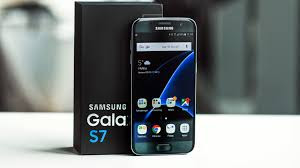
Samsung recently launched their latest flagship devices, Galaxy S7 and Galaxy S7 Edge Smartphones with ultramodern specs to behold. If you haven't seen what these devices can do, then you should see the specification of Samsung S7 devices

Like other Smartphones, there are bound to be bugs and issues from time to time but it seems this new Samsung phones are getting issues too fast. Is it because of the android 6.0 marshmallow it came with? We are away that marshmallow has some bugs and issues but google is quickly fixing them with subsequent OS updates.

In this tutorial, I will be guiding you through the ways to fix major problems and issues with Samsung S7 phones including how to Unbrick it and how to unroot it. I recently published a post on [how to root Samsung S7 devices]


Kindly pay attention and follow the steps and guides here in other to achieve maximum and successful results.

Google Playstore Crashing Problem On Samsung Galaxy S7 And S7 Edge

One of the most common problem on many android phones is the crashing of google Playstore and even some other apps and this latest phone from Samsung is not an exception as it has its own share of the crashing palava. To fix this problem, kindly go to your phone settings > Apps > All > Google Playstore and tap wipe cache and then wipe app data. After doing that, reboot your phone and the crashing issue will be solved. However, in some rare cases, you will need to update your google Playstore to the latest version and it will be fixed.

READ ALSO

√ How To Fix Download Error On Google Playstore


Problem Of Insufficient Space On Samsung Devices
This is another common and general issue with most android phones and it becomes worrisome if you have something to install and this message of insufficient memory pops up. To fix this issue on your Samsung phones, kindly install CCleaner app from google Playstore and use it to clean unnecessary app data and cache on your device. Another way to fix it is to uninstall some useless apps that you don't normally make use of in your phone. What is the gain of having apps that you are not making use of and in return, it takes up your phone memory and lags your devices. Just get rid of them and enjoy your android phone the more.

System UI Not Working On Your Galaxy S7 Devices
This usually happens whenever you alter or misuse some features in your Samsung phone. It can also happen whenever you install some dangerous and untrusted apps on your phone. These apps go inside your phone and mess some stuffs around. To fix this issue, navigate to system **settings > Apps > All > System UI*, then clear cache and reboot your phone.

READ ALSO

√ Google To Allow Users Test Games On Playstore Before Downloading On Their Phones

Issues Of Parse Package Error On Galaxy S7 And Other Android Devices
This particular problem still have some Samsung and android phone users bemused and confused because it seems as if there is no fix for it but am telling you right now that it is very simple to fix. Have you encountered parse error issue whenever you want to download applications on your phone? Now the problem will be fixed as soon as you follow the steps below. Just go to your phone settings and allow download from unknown sources. Also make sure that the application you are downloading is in the android format (that is .apk). Another thing you should check is whether the app in question is supported on the android 6.0 marshmallow OS. Once these are verified, it should be a past story and you won't see parse error again.


Issue Of Unfortunately App Has Stopped On Galaxy S7 And Android Devices

This kind of issue is also common and can be fixed in many different ways. First method is to be sure that you clear the cache and data of that stubborn app that usually say unfortunately app has. To do this, just go to phone Settings > App > All > appname > clear cache and wipe data, After that, reboot your phone and the problem will be over.
Secondly, you can to re-install that particular app to your phone. However if this same problem is affecting most of the apps on your phone, then there is no option than to hard reset your galaxy S7 device. Make sure you backup your device before carrying out this step. To hard reset Galaxy S7 phones, just power off your device, now press & hold the Volume up button, the Home button, and the Power button together for about 7 seconds until the Android ON screen come up. To navigate around, use the volume down button to reach to the wipe data/factory reset option, now use the power button to make your selections and select the option.

Constant Overheating Issues On Samsung Galaxy S7 Devices
Though Samsung Galaxy S7 is not expected to have overheating issues because of the 4GB RAM it has. Buy in case you face the issue by mistake, you should apply some normal tricks used in extending battery life and making phone perform faster. You can see How To Stop Android Battery From Draining Faster


How To Fix Samsung Galaxy S7 Wi-Fi Problems
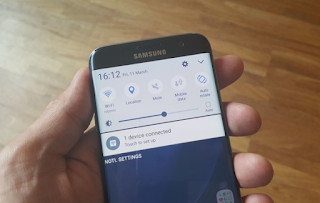
Sometimes we encounter Wi-Fi issues on android devices including the Samsung galaxy S7 and S7 edge devices. To fix this problem, kindly boot your device in safe mode and restart. Second method of fixing this problem is to go to an already connected Wi-Fi and tap forget, type the password and connect again. You must also make sure you enabled the “Always allow scanning” and set your WiFi to be ON during phone sleep mode.
READ ALSO

√ How To Share Your VPN Browsing Data Via WiFi Hotspot

Samsung Galaxy S7 GPS Problems Fix

GPS is one of the most important feature in any Smartphone and when yours starts misbehaving and having issues, it calls for serious attention. Anyway, to fix GPS issues on any android phone and Samsung devices, go to Settings > Personal tab and select Privacy and safety > Location > Location method and try to utilize Wifi and mobile to track mobile. You can as well apply WIfI and mobile, after that and it still didn't work, then utilize GPS only. Another method is to toggle location ON, OFF and then ON. If after this and it still prove too stubborn, then the best option is to clear WiFi cache and data.


How To Unroot Samsung Galaxy S7 And S7 Edge Devices
Rooting is what most android users do first immediately after purchasing a new phone because of it's advantages. You can check Top advantages of rooting your android phone.
But in some situations, one may decide to unroot his or her phone because of different reasons at that particular time. Well, to unroot your phone, kindly download and install Kingroot app and tap the unroot option. Alternatively, you can unroot your phone by installing or flashing new stock or custom ROM.


How To Install Stock Galaxy S7 Firmware And ROM Using ODIN Software.
You can also use this method to unbrick a bricked Samsung galaxy S7 devices.

==> Download Samsung drivers to your computer

==> Enable USB debugging on your phone.

==> Download the officially approved Samsung S7 firmware file for your Galaxy S7 device
==> Boot the phone to download mode by easily switching off the phone, press, Volume Down + Power + Home. Press Volume Up now to continue to Download Mode

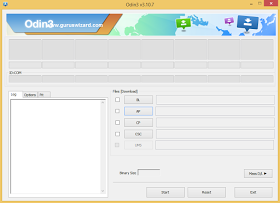
==> Download ODIN application and launch it on your computer, now connect your phone to the computer and a message will display showing that its connected.

==> While you are at the
ODIN app, select AP, then find the downloaded stock firmware file which is in .tar format. It is important not to tick the re-partition in the odin.

==> Finally, simply click the
start button*"and immediately the process completes, you should see the RESET or PASS message showing on ODIN software screen.

Your phone is now unrooted and unbricked. You now have a brand new device to play with.

Are you still confused, use the comment box below to ask any question bothering you and I will try my best to provide solutions.

How To Unlock Xiaomi Mi4S Bootloader And install Custom ROMs And Multiple Languages

Most of the new Xiaomi phones that are now available in the market have one common issue and that is a locked boot loader. This has been too worrisome for international fans of the brand, an unlock solution for the newest Xiaomi Mi4S device has been provided by a [Chinese firm www.shop.gizchina.com]

With the guide on this post, you can confidently unlock the boot loader of Xiaomi Mi4S thereby making it possible for you to start installing TWRP, ROMs, and multiple languages on the phone.

DISCLAIMER
This tutorial is not in any means intended for unlawful acts rather it is for educational purposes and for better performance of your phone.
I am not responsible for any damage or problems with your device if you follow this this tutorial the wrong way. Make sure you use Windows 64-Bit because if do it with a 32-Bit Windows, you may encounter this error ” Not enough storage to process this command”.
So if you are scared of tweaking and your mind doesn't feel really confident with modding your Android phones, please this post is not for you but if you are sure of what you are doing, common!!! Follow me along.

NOTE
==> I advice you to make a backup of your phone data
==> Make sure your Xiaomi phone battery is charged to at least 80%

DOWNLOAD LINKS

√ Download and install the MiFlash here

√ Download and extract ROM and Tools here


Guides To Unlock The Boot Loader And Install Multiple Languages

==> Switch off your Xiaomi Mi 4S phone

==> Navigate to fastboot mode by pressing and holding Volume Down and Power button together for about 6 seconds

==> Just click on the Mi4S EDL.cmd, and this will make your phone to enter in EDL download mode with Red Led.


==> At this point, you should have downloaded and installed the Qualcomm HS-USB QDLoader 9008 Driver. You can locate the driver in MiFlash directory: C:\Program Files (x86)\Xiaomi\MiPhone\Qualcomm\Driver\

==> Just open MiFlash, Browser and load the Mi4S Multi Language ROM,

==> Refresh it and you will see COMXX in the Device, Now press “Flash”

==> The flashing process will start and once the flashing process is done completely, just remove the usb chord

==> Now press and hold Power Button until it Vibrates. Your phone will start, wait for it till completion, this can take up to 12 Minutes so be patient.

We are done! Now your new Xiaomi Mi 4S device is unlocked with Multilanguage enabled.

Meanwhile, if you want to have TWRP recovery installed, simply follow the step 1 to go to fastboot mode again, and from there, run the Mi4S TWRP.cmd

Are you still having difficulties? Let me know via the comment box below.

How To Root Gionee P5W Easily

As I always says, rooting your phone is your certificate to tweakers honorary degree so without rooting you may find it difficult to be employed in some great companies as a boss. I hope get what I mean. Alright, to break it down; rooting allows you to be the boss of your device and you will be eligible for all tweaking available. Oh yes... You get it now.

Normally, new phones with Android 5.1 and Android 6.0 are very difficult to root with previous normal phone rooting methods but there is always a solution to every difficult problem in life. All that is needed is time and concentration. Team Hovatek have really done well since the advent of Android lollipop operating system with frequent release of rooting methods for devices running of latest Android versions as they cannot be rooted with Kingroot at the moment. We are still expecting another update that will allow Kingroot to easily root all Android 5.1 and lollipop.

In this post, I will show you how to root your Gionee P5W smartphone with SP flashtool on your PC. Before you start the rooting process, make sure you know what you are doing.

NOTE
Rooting automatically voids your phone warranty and it may brick your phone if you don't follow the below steps carefully. This tutorial is for educational purposes and should not be used otherwise!

Now that you are ready for the tutorial on how to root Gionee P5W, let's get started.

THINGS YOU WILL NEED
==> Original USB chord
==> A PC
==> Super SU: just download superSu here
==> Vcom driver: kindly download Vcom driver here
==> CWM of Gionee P52: also download it here
==> SP Flashtool: you can download SP flashtool here
==> Your brain and Patience in following


HOW TO ROOT GIONEE PIONEER P5W
==> I know by now you must have installed Vcom drivers on your PC
==> Now copy the Super SU you just downloaded to your internal memory or SD card. It must be in the root of your SD card
==> Also I know that you have downloaded CWM ported by team hovatek, Now switch off your phone and flash the recovery image using SP flash tool on your PC

To Learn How To Flash CWM With SP Flashtool, click here

==> Now restart your phone into recovery mode (this can be done by Holding the Vol Up and Power button at the same time for 6 seconds)
==> Now that you are in CWM recovery mode, select install zip from sdcard to navigate around and choose zip from sdcard use the vol up and down to scroll up and down then use the power button to make selections. choose the Supersu.zip file from the root of your memory card (sdcard)

==> Now give the phone access by Scrolling and selecting yes and install, at this point, the flashing process will begin and after it is completed, kindly go back and reboot the phone.
==> In some cases, when ypu want to reboot your phone, CWM will ask to help you fix a missing root, just select no.

Congrats. Your phone is now completely rooted! And to verify if your Gionee P5W is completely rooted, just download root checker from to Google Playstore

Feel free to share with your friends by hitting the share buttons below

Credits to TeamHovatek for providing the ported CWM

How To Stop Your Android Battery From Draining Too Quick


Oh no! Imagine that moment when you need to brows out an important information on your and your battery starts beeping and notifying you of low battery. Chai! That experience when you want to have a nice chat with someone so important or your boo and your phone just tripped off as a result of low battery. Honestly, a large number of people have missed some important occasions and seminars because of low phone battery.

A friend of mine missed an important job interview just because his phone was switched of and he didn't get the SMS and email sent to him by his potential employers.

How To Root Tecno Phantom 5 With SP Flash Tool


Not only Tecno Phantom 5 but majority of all devices running on Android 5.1 are hard to root with the normal methods we are used to, though, latest version of Kingroot try and root some Android one devices but a lot of work still need to be done on the app to make it root all Android 5.1 devices without hitches.
While we wait for that, our trusted Hovatek team that are known for their development and phone tweaking expertise just released a ported TWRP file to be used in rooting Tecno Phantom 5.

How To Share SAS And Psiphon Data Through Hotspot With Other Phones


Me and you know that before now, you cannot share your Psiphon, Simple Android Server and Tweakware internet data with other Android phones except on PC using the trick I shared here some time ago. You can check it out...how to share my Psiphon data with hotspot on PC. But there is more demand from tweakers to know how to share their phone data through WiFi hotspot tethering with other devices.
Follow below steps...

How Can I Run Two Whatsapp Accounts In One Phone With OGWhatsapp?

Are you wondering whether it is possible to run two different Whatsapp accounts in your phone? Well, it is very possible. In fact this trick has been working for some months now but I try to bring it up for some of you that are not aware of this. Just imagine how awesome it will be when you have the option of creating two accounts with two different numbers. That's cool!
We all know that normally you cannot use more than one Whatsapp account on one device but this restriction has been broken

Marshmallow Update Is Now Available For Infinix Hot 2; See How To Upgrade To Android 6.0

I said it at the ending of last year when Infinix Hot 2 was launched that the phone will be getting latest Android 6.0 (marshmallow) update in early this year and just over the weekend, it happened as many Infinix Hot 2 users started receiving OTA updates on their phone and it is still been rolled out for others.
However, the issue is how to safely do this update especially for those that can't wait until the update comes to their phone.

Step By Step Method To Update Your Tablets And PC To Windows 10


Few months ago, Microsoft announced the release of windows 10 for the public to install. I found out that most people are finding it very difficult to go about the installation of this awesome operating system that has new and better user interface more than windows 7, 8, and 8.1. With this windows 10, one can stream from Xbox, it has a new start menu and cortana.

Checkout Easiest Method To Jailbreak iOS 9.0, 9.01 And 9.02 Devices

In android, we fondly call it rooting but in the iOS planet, it is called Jailbreaking. it is the same as rooting because the focal purpose of jailbreaking  iOS devices is to remove some of the restrictions placed on it like not been able to freely download tweaks, themes, customization and other stuffs from cyndia.  All of us knows that iOS devices are protected and heavily secured from tweaking and customization including using another themplate on it. So follow me as i show you the easiest way on how to jailbreak iOS 9 devices.

How To Tweak IMEI Number Of Infinix Hot 2, Innjoo Max 2 And Innjoo Max 2 Plus

One question that users of Infinix Hot 2 and Innjoo Max 2 smartphone always ask is how to change these phones IMEI Number to be able to benefit from what others are enjoying like free data. But i understand that most people find it very difficult to change innjoo max 2 and infinix hot 2 IMEI using the popular mobileuncle tool and even Chamelephon app which have helped people change their phone IMEI in recent times. But you don't need to worry because there is always a solution to any problem. I will show you how to easily change this phone;s IMEI by just dialing a code. This means you don't need to install any app to carry out this process.