Showing posts with label Guest Post. Show all posts

How To Reduce Your Blog Bounce Rate

Bounce rates are known to be main heartbeat of a content/page, just as the content quality is vital you must also be worried about your page bounce rate.

Imagine you researched thoughroughly on a content and you made up your own words about it then after putting up the post, you will need to check how people are responding to the content, on noting this you found out that people are getting off or bouncing back quickly,that means something is wrong somewhere , instead of being perplexed you need to dig out whats going on.

What's Bounce Rate Actually

When a user or visitor lands on your website page but leaves the page in nothing less than 10secs thus not clicking on any other links he is said to have bounced back.

According to research the highest bounce rate should have is 80% anything higher than that is bad, though when looking at great sites like wikipedia they have a high bounces rate and it doesn't affect their rankings on search engine result pages this is due to quick facts and statistics people only used them for.

How To Reduce Your Blog Bounce Rate

Loading Speed:

Try making your website loading speed as fast as usain bolt, you can't expect a user who desperately / hurriedly need an info to wait over a minutes on loading your site where other competitors need clicks, This might even lower your ranking on search engine when your page ctr is low.


Write A Comprehensive And Quality Post:


Actually, if a visitor finds what he really needed or he had been longing for on your website there is no reason for him to bounce off the page even he will be interested in checking out other interesting pages on your site thus increasing your visibility rate on search engine.

Remove All Intrusive And Pop Ups Ads

Even me as a webmaster whenever i load a page and it evolve out a big pop up ad i will hit the back button immediately when other pages are hungry for clicks.

Those pop up ads is not only unprofessional but also intrusive, you can't expect real website like wikipedia to be engage in using pop out ads, this cannot only increase your bounce rate but also reduce your visibility rate on search engines.


Internal Links


Internal links are links linking to other pages on your website , Using this idea might reduce your website bounce rate as it will not only increase your site pageviews but also increase your visibility rate on serp just make sure your suggestions are related to their queries


Your Page Design


That might sounds unnecessary but it's a number one factor in reducing your bounce rate and maintaining user experience, imagine you used a black design and your text are blue in colour this might not look appaling to eye even if i site any bad design and i can't read the words clearly i bounced off the page at once.


Employ The Use Of Bucket Brigades


This might sound new right:


You will be wondering what bucket brigades really is , its a phrase written intelligently by you so as to keep visitors


Thats Sounds Impressive Right:


I knew you will notice i'm using words ending with a colon, thats a bucket brigade just like the one bolded above

Whenever you are writing a content and you noticed a part that might seems awful to visitor try applying a bucket brigade.

Below Are The List Of Bucket Brigade You Can Use You Can Also Try Yours


The Best Part Is:

Now

Here is the Punch:

It Sounds Crazy Right:

Here Is The Deal:


Applying this method might thrill your visitor to keep staying on your page thus reducing that specific page bounce rate.


Thanks for reading, you can also drop your own working  tactics you do use to keep people on your site in the comment box.

Author: Ayandoye Pelumi Olawale

Facebook Page: www.facebook.com/naijaspecs

How To Use Android As Your Computer's Operating System


" Leaving your your Android smartphone does not create a barrier to using Android "

Rather than missing all those Android App on your PC, or laptop, consider Android as your Operating System. Sometimes we will have the urge of using that Twitter or Facebook App on our PC, even those HD Android games are irresistible. Although Android is our smartphone's operating system but we still think it will be much better on computers.

Nevertheless, you should thank the development of Android-x86, a build of Android that is tailored to machines running Intel and AMD processors, rather than the ARM-based CPUs of Android hardware. Installation is somehow easy and straightforward, although:

1.You'll get better results on a machine with a touch sensitive display, even with the mouse attached.
2. If you get it wrong, it could result to the loss of personal data, so it's a good idea to try  Android-x86 in a Virtual Machine first before proceeding with a full install.


FEATURES
Android 4.4 KitKat has support for USB keyboards and your mouse, so you shouldn’t have any problem finding your way around. Some shortcuts are available, however. For instance, the Esc key will exit out of apps, while the Windows key will return you to the homescreen. During installation to hard-disk, Android-x86 support ext3,ext2,ntfs,fat32 extensions.

REQUIREMENTS
1. A new partition on your Windows computer.
 To create a new partition, open the DiskManagement (hold the Windows key, pressing R,then entering diskmgmt.msc) and right-clicking your hard diskdrive. After that select Shrink Volume, reduce by 8GB and then create a new 8GB partition.

2. Download Android (adf.ly/1eSeey) and find the version of 4.4 KitKat you want to download. Some notebooks/netbooks have dedicated builds of Android-x86, so these are recommended for corresponding hardware.

3. A USB flash device or an optical disc.

HOW TO MAKE ANDROID YOUR COMPUTER OS

1. Once you have downloaded your device Android. Burn to optical disc or write to USB flash device using UNetbootin.


2. Now insert the disc and restart your computer to boot from the DVD or otherwise use the USB device.
If you’re using Windows 8 you may need to open Settings>Change PC settings>Update and Recovery>Recovery and select Restart now to select the USB device with Android-x86 on.

3. You can preview how the android will look like. If you love it then proceed.
To preview, there are three Live CD options available, so using the keyboard, select the first – ‘Run Android-x86 without installation’. If you have display issues, reboot and select ‘Live CD – VESA mode’.

4. If you are captivated by the results of the Live CD version of Android-x86, reboot again using the hardware power switch.
 On the installation CD menu select ‘Installation – Install Android-x86 to harddisk’. You’ll be prompted to select a partition. To install locally, select ‘Create/Modify partitions’.


5. After step 4, the disk formatting tool will display available partitions and space.
Use the arrow keys to select New and create a new partition, setting it as Primary and tap Enter again to select the partition. Select Bootable to make the partition bootable and Write, confirming with Yes.

6. Exit the disk formatting app with Quit and select the new partition in the new screen. Follow this by selecting the ext3 file system and confirm the selection, paying attention to the warning that any existing data on the partition will be deleted. Then select Yes to proceed.


7. After that Install system directory.
Select Yes to install GRUB and again to add Windows to your boot menu. Finally, select Yes to set-up the /system directory as read-write. This will increase the installation time, but is best for debugging. Then Android will begin installing.


8. Now your computer is on Android. You should see a message confirming a successful installation. Select ‘Run Android-x86’ to boot the newly installed mobile operating system. Soon you’ll see the usual Android set-up screen, asking you to set a language, connect to Wi-Fi and sign-in with your usual credentials.

That is all about making Android as PC's Operating System.

Guest Post:
Written by Helyz Akande who blogs at helyzakande.com
You can follow him on twitter @helyz_akande
On Facebook HelzAkande

Three (3) Key Features To Check Before Buying Any Android Device

For sure Android device is the coat  everyone rocks now. No one wants to see him/her self using symbian or java phones anymore, even some blackberry users have dumped their blackberry phones for Android devices.
Android phones are the perfect phones to use in this century as there exhibits many unbelievable features.
To be frank not every Android user knows all what his device is capable of doing. A user must have to use his Android phone for several years to be able to use half of the features his device is capable of.
Buying an Android device is not the problem many individuals encounter but what sucks the most is when you buy a wrong choice. This can be very frustrating.
Now, to make sure you are buying the right and durable Android device you will have to read below.
Things you must check before buying any Android device.


1: BATTERY CAPACITY
Am starting with this because it is the major challenge people face after buying an Android device. Novice Android users don't know how to confirm how healthy a battery is, from its details printed at the back of the battery.
To ensure the battery device is strong or durable you can easily look at the body of the battery and locate the "mAh" of the battery. Now when buying any Android devices make sure the battery mAh capacity is up to 3000mAh or higher to have a long lasting battery.


2: Internal storage and RAM
This is also important to know when purchasing any Android device as it responsible for the flexibility of the phone. The internal storage reduces the moment you install any new app. so if your device don't have sufficient internal storage you will not be able to install many apps to your liking. Any android device you're buying, the internal Storage should be at least 8gb.
The RAM plays it role whenever you're running many apps at a time. If your RAM space is not enough for the apps running in your device at the same time it results to slowing and hanging of the phone.
So, to make sure your phone don't slow or hang while running many apps at the same time you will have to make sure the phone RAM space is up to 1GB or more.


3: Processor

Yes! You heard me right. The processor of Android devices should not be neglected because it is what makes your device respond very fast. It also takes care of how fast the downloading and browsing speed of your device will be.
To buy the best Android device this should not be oversight, make sure the phone processor is up to 1.3GHz quad-core processor and above.
By the time you comprehend all these in your criterial when buying an android device, for sure you will be going home with the best Android device.

{About The Author: I am Ahmad Dinho, a hard working tech blogger who spends 80% of my time blogging. I am the founder of www.dinho9ja.com . You can follow me via my twitter handle @dinho9ja }

How To Create And Design Multi-Column Gravity Forms

You can easily create single column forms using the drag and drop builder of Gravity Forms. It is also easy to move the fields by dragging them however to divide the form into multiple columns you will need to use CSS Ready Classes.
What are CSS Ready Classes?
CSS Ready Classes are used to create advanced layouts for Gravity Forms. This is a core feature of Gravity Forms and you don't need any 3rd party plugin to use them. They were incorporated in version 1.5 of Gravity Forms. You can create 2/3 columns layouts by adding them to your form fields.

How to Create 2 Column Forms?
For creating a 2 Column form you have to use 'gf_left_half' and 'gf_right_half' classes. 'gf_left_half ' class aligns the field into left half of the form and 'gf_right_half ' 

class aligns the field into right half.
 Here are the steps to divide the form into equal halves.

·         Open the form which you want to convert into 2 columns.
·         Click on the form field of which you want to change alignment. Go to Advanced tab and add 'gf_left_half' or 'gf_right_half' under CSS Class Name.
·         To align adjacent fields side by side you must align the first field towards left and the next field towards right.

How to Create 3 Column Forms?
Steps for creating 3 Column Forms is similar to those of 2 column forms. The only change is the name of classes.

To align a field the the left you should use 'gf_left_third' , to align a field into middle you should use 'gf_middle_third' and for alinging a field into right you should use 'gf_right_third'.
How to Divide Checkboxes and Radio Buttons into Multiple Columns?
There are special classes to change the layout of checkboxes and radio buttons. You can use gf_list_2col, gf_list_3col, gf_list_4col, gf_list_5col to divide these fields into two, three, four and five columns respectively.
How to Design Multi-Column Gravity Forms?
To design multi-column form you can use Styles and Layouts for Gravity Forms Plugin from WordPress plugin repository. This is a free plugin and works well both on single and multi-column layouts.
Steps to design the forms.
  • Login into WordPress dashboard and open the form in front end of your website. Click on the customize button in admin bar.
  • You will see multiple panels in customizer sidebar. Look for Styles & Layouts Gravity Forms. This panel is created by the plugin after activation.
  • Now you will notice there is only 'Select Form' section inside this panel with a dropdown which list all of all the available form. Select the form which you want to design.
  •  Once you select a form the plugin will automatically save the changes in database and the refresh the page.
  • You have to navigate to 'Styles & Layouts Gravity Forms' again and this time you will see all the sections which you can customize using this plugin. There are more than hundred settings available for customization. 
  • Now navigate to the section for which you want to change the design. You will see all the options like backround color, font  size, font color, margin, padding etc. 
  • Every time you will change a setting the changes will be immediately reflected on the post. Once you have designed the form then click on the Save and Publish button to make the changes permanent.

Does the Layout and Design will Work even after changing Theme?
Since all the changes are done inside Gravity forms as well as Styles and Layouts Plugin so, the changes will not be lost after updating or changing the theme.

Drop a comment if you need any assistance regarding this article.

Author Bio:
This article is written by Amandeep who regularly writes at https://webholics.in . He is a developer by profession and you can contact him regarding any custom work of WordPress plugins and themes.

Guest Post: How To Use Your Android Camera As PC Webcam

Dear sir,
My Name is Helyz, an upcoming blogger. Recently I check through your
blog I found something missing and I think I should write about it:
How To Use your Android camera as PC webcam

Yeah! Talking of WebCam – the last time I check the price list at
Jumia it was ranging between N2,500 to N25,000. Most people are now
using WebCam for various reasons to chatting on skype, creating
youtube videos, video calling and live interviews for TV stations.
WebCam is a very important tools for blogger – making money with
youtube tutorial videos.
Hey! WebCam is always with you, why are you wasting money ordering
WebCams' on Jumia and Konga? I know you're puzzled about that
expression. Okay, do you know you can use your Android Smartphone as a
WebCam.
Without a further ado, I will be sharing with you few basic steps to
convert you HD Android Smartphone to WebCam.

What Do I Need?
1. DroidCam android App.
2. DroidCam PC Version.
3. Android Smartphone
4. A Computer
5. USB Cable(optional)

How To Use Android Smartphone as WebCam.
=> First install the software for your system Here
=> Now install the Android application from this link
Connect with USB cable
=> Now connect your system and android with USB cable.
=> Click on the USB icon at the top of the Droid Cam application in you system
=> Finally, Tap the Start  button

That's it. If it shows a command prompt just wait till it finishes.
Now you could see the video captured by your mobile on your system.
When you use this application which require webcam like skype
it will detect your android mobile automatically and you don't need to
do anything.

Connect over Wifi or hotspot
To work with wifi, you can connect your devices to your LAN or create
a hotspot at android or create a wifi server with system application.
All will do the same work, so it's your choice.
I will show to  connect over with your LAN if you don't have LAN just
connect it with Wifi server found at the top the right of the system
application.

=> When you connect your android to LAN, the app in android will show
your IP address.

Enter the IP address into the DroidCam application in your system.
=> click the Start button.

That's it.
Name: Helyz Akande
Blog: helyzakande.com
Twitter: @helyz_akande

GUEST POST: Best Way To Get Your Blogger And Wordpress URL Indexed And Appear In Search Engines Under 2Hrs

This post is written by Max, the editor in chief and founder of www.applygist.com. One of the fastest growing top tech blogs in Africa. Relax and read.


Are you a Blogger? And you are tired off Poo Traffic? This is the super Magic i found on how to get all your Pagest index on search engines in less than Two hours. I was frustrated when Google refused to index my pages in Good time. Google only Indexed 150 urls of over 195 so i went researching on Hpw to fix this and i discobvered that you will be doing yourself Damage if you still use the old style of Sitemap. Search Engines will not index your pages or they may not do so on time. 


DON'T
Solutions

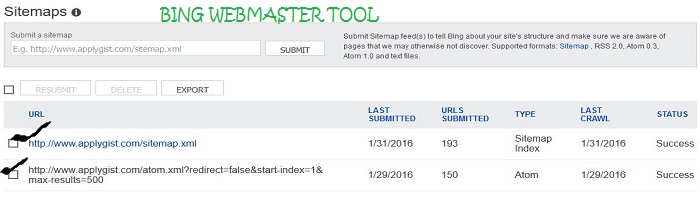
Use Just One Sitemap On your Google Search Console Formerly called Google Webmaster Tool 
Use this Default Site Map  http://www.applygist.com/sitemap.xml

Now the Above is Our Blog Site Map 
The Trick here is that Add your Url Like this http://myblogurl.com or http://www.myblog.blogspot or wordpress.com Followed by a Forward Slash like this /sitemap.xml
 The Above allows all your Pages Indexed without Limits See Screen Shot Bellow

NOTE: 
Should In Case Google and Other Search Engines Changes Startegy be sure to Get updates on this Page 


Written by Max of appygist.com  and published by Wizy of WizyTechs

I hope this article helps

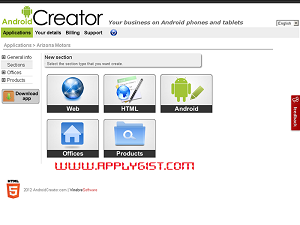
GUEST POST BY APPLYGIST: Have You Created An App For Your Blog Or Business? Monetize It In 1 Hour

http://www.androidcreator.com/app114275
Another educative and important article written by Mr Max, the owner and editor in chief of Naija top tech blog www.applygist.com. Happy reading...
If you fall under this categories of people and you are not yet using Android Creator, then this post is Highly Recommended for you don't mind the lengthy post its helpful.

Bloggers, Web Developers, Commerce brokers, Wen owners, Organizations, Game creators, Coders, Webmaster and Chat lovers 
 with Android creator you can create an app for so much reasons and the good part is you can monetize it fully Using your Adsense account( which will integrate into Ad Mob account. 

GUEST POST: List Of All Latest Whatsapp Mods And Their Features Plus Download Links

The post you are about to read is written by one of the top tech blogger in Nigeria by name Max. He owns applygist tech. Happy reading...

Hello WizyTechs readers. Hope you all are cool. I just wish to update you on the Trending Whatsapp Mods which you can download free and enjoy much more fun on the whatsapp Application.
Though the  following are not the only trending Whatsapp Mods, but this are the most rocking ones which are working without any hitch.