Showing posts with label antivirus. Show all posts

How to keep your Android device safe with Kaspersky Services

Even with all the changes in the concept of the personal computer that have occurred during the last decade, something remains unchanged in our relationship with technology: the constant risk of contamination and loss of important data. When PCs were our main way of connecting to the internet, having a good antivirus was mandatory for anyone who liked to download programs and new content on the machine.

Things have changed with the popularization of smartphones, which are now the main device for accessing the network for millions of Brazilians. 

We use the cell phone to chat with the family, post photos of the routine, watch series, pay slips and check the credit card statement. These devices are full of personal information and bank details, but many people do not have the same care with them as they used to traditional PCs.
A draw.

What to do to stay safe?

Incredibly, the form of protection has not changed so much over time. Specialized security companies, such as Kaspersky Lab , have been and continue to be primarily responsible for producing reliable tools that are used by both large companies and governments and home users. This is also true for those who want to protect their Android device.

You probably take your phone everywhere, always connecting on public and open WiFi networks, which can become a serious security issue if proper precautions have not been taken. You may also want to ensure that no one will have access to private files or photos stored on the device, even if that person is able to unlock it. Kaspersky Lab provides solutions for all these cases.

A Complete Security Package

With Kaspersky Internet Security for Android, you have a wide range of security to make your browsing easier. In addition to blocking links that redirect to malicious websites, preventing the installation of malware and filtering out unwanted links, this service maintains your privacy and can even help you if your device is stolen.

It offers an option to restrict access to certain applications only to those who have a specific password. That way, even if someone takes your device with the screen unlocked, that person will not be able to read your messages or invade your social networks, for example.

In the meantime, the automatic scan completely scans new applications and files that are downloaded. It is also possible to configure the service to track your cell phone or even emit audible alerts, which can come in handy in cases where the device is stolen or lost.

Security even on public WiFi

But maintaining security does not mean checking only the files and programs in the device's memory. Your constant connection to the internet can also be a gateway to viruses and malware, especially when it comes to networks of public places, such as shopping malls, universities, squares or buses.

For these cases, there is Kaspersky Secure Connection , a service that uses Virtual Private Network (VPN) technology to protect your information. With it, all transferred data is protected through an encrypted channel, including its location and the connection IP address.

In addition to setting up a barrier against hackers who take advantage of open networks to steal information, Kaspersky Secure Connection can be used to create a virtual location, allowing the user to enter websites, download applications or use services that are only available in other countries. All of this without keeping any kind of record.

Following these tips, your personal data and financial information stored on the device must remain safe. Don't forget that all these Kaspersky tools have free versions for home users, offering a good starting point to start protecting your phone.

How to Protect Your Company Against Online Threats

As the number of online threats shows no sign of going down, it's essential to know how to protect ourselves from them. It's no secret that home users aren't the only ones affected by this problem. Companies face the same issue. It doesn't even matter if they're small, medium or big businesses. Hackers have never and won't ever discriminate when they want to wreak havoc. From the minute a computer, tablet or smartphone is infected with malware, sensitive data can and will be damaged. More often than not, the owner of any of these gadgets has to pay a ransom. That is, if they want to see their important data back where it belongs.

Having a counterattack plan for your business is of great importance. Only so can you be certain that nothing valuable will get lost should a cyber-attack happen. Contrary to popular belief, small companies are more likely to get targeted by hackers than medium or big ones. Why? Simple: they think nothing will ever happen to them since they're not as popular as larger businesses. That is why they seldom, if ever, invest in IT security. This is the worst thing you, as a manager, can do. Relying on strong security software is the difference between success and failure. You don't want to shut the doors down on your business, now, do you? If you continue to not invest in excellent IT security, that's exactly what will happen.
Cyber-attacks have, in the past couple of years, done damage to a large number of home users and companies. By the looks of it, hackers won't stop doing harmful things too soon.

READ: How To Remove Netalpha Virus From Your Phone

Luckily for device owners, there are lots of methods which work very well against malware creators. Today we'll tell you how to protect your company against online threats!

Use a VPN: A Virtual Private Network, or VPN in short, should be among your first three options in the fight against cyber attacks. VPNs are known for hiding IP addresses and traffic, as well as encrypting a connection. Before you choose a Virtual Private Network, though, think of your company's needs. You could, for instance, require faster connection speeds or zero traffic logs. In each of these cases, a different VPN would be needed. Choose well and you'll no longer have to worry about online threats.

Encrypt data: We previously mentioned "encrypting a connection" via VPNs. Hackers all around the world love to look around for company-held data lying around unprotected. This can range from social security numbers belonging to employees to their home address and so much more. To avoid all that, businesses must enable their devices' full-disk encryption tools if they aren't already turned on. These tools keep crucial information very well-protected against malware attacks. As soon as they're enabled, an employee should also do this: set their PC to log out automatically after 5-10 minutes of not being used.

Educate your employees on the benefits of IT security: Security needs to be a part of every business's culture. No matter if you work in a small, medium or large company, you must take every necessary precaution to ensure the safety of both you and your business. Hackers generally steal data with the unwilling help of employees. Apps and email servers are two of the ways malware can affect a device. If, for example, you notice something suspicious about one of your emails, tell your IT department about it.It's strongly recommended that you send your employees emails frequently, detailing types of cyber-attacks and how to keep them from happening. Better yet: prevent the people who work for you from using your business's Wi-Fi to open their personal emails.

Secure your computer's hardware: Computer systems aren't the only routes used by a hacker to do damage. Server room doors must be kept locked and closed at all times. The majority of desktops and laptops use Kensington lock ports. These exist so that your work device is tied up to your desk. To make things even more secure, use cloud computing software.

READ: 8 Tips To Protect Your Computer and Smartphones From Virus

Install an efficient security solution: Protecting your company from online dangers can also be done via strong security software. Malicious threats won't be gone if you, as a business, only use your PC's firewall. Security solutions are more than recommended for companies. The market is very well stocked with these tools, so you don't have to worry about choosing one that fits your needs. You can find a list of the best ones here.Many businesses have been targeted by cyber-attacks throughout the years. This has caused a lot of them to shut down. If you don't want that to happen to your own company, read our tips on how to protect it against online threats!


Wanakey: Download WanaKiwi Tool For Ransomware Decryption

Is you PC affected by the latest deadly Ransomware called WanaCry? A timely solution to the attack is here. Well, in case you don't know, a malware called Ransomeware (aka WanaCry) has affected more than 300,000 computers in 150 nations since its attack on computers running the Microsoft Windows operating system last Friday.

The way it works? Very dangerous! Once your company is infected, the ransomware encrypts your data demands ransom payments from the infected computers in the Bitcoincryptocurrency. Hence the name "Ransomeware" But good news is there is a fix now so no need to pay any ransom anymore as security experts released a decryption tool called WanaKiwi. or WanaKey

WanaKiwi can be used on Windows XP, Vista, 7, Server 2003, and Server 2008, and can run using the command prompt. If your system is affected by Ransomeware, follow the below link to download the decryption tool kit.

WHERE TO GET IT

Download Wanakey. The guides on how to run it is provided there as well.

Kindly SHARE this article and help save someone out there today.

#wanacry #wanakey #wanakiwi #ransomeware #malware

Ransomware Virus: NCC Warns People About The Dangerous WannaCry Attack

The Nigerian Communications Commission (NCC) in fulfilment of its statutory mandate to assure the security and integrity of the national telecommunications network wishes to alert all operators and their respective subscribers of the recent outbreak of a Ransomware Virus known as “WannaCry”.

The Ransomware is capable of infecting and encrypting all files on a system or any smart device until an amount is paid for a decryption key, or other means of retrieval (which may lead to data loss) are used to recover the system as an alternative. This situation demands that proactive measures be taken by all players in the telecommunication eco-system to forestall the hazards of critical data loss, financial losses and ultimately network/business disruption.

The NCC therefore wishes to advise that the following protective measures be taken, amongst others:

✔ To obtain software patch released by Microsoft in March 2017 to fix the Ransomware Virus.

✔️ To plan scheduled penetration tests on the networks and systems to ensure protection and availability at all times.

✔ Subscribers who use their smartphones as substitutes to computers for internet access should protect themselves and their devices by:

✔️ Not opening e-mail attachments/links from unknown sources.

✔ Not clicking pop-ups and applets on unknown websites.

✔ Installing effective antivirus software for their mobile devices.

Furthermore, the NCC has taken the following proactive measures in fulfilling its statutory mandate;

The Commission has advised Mobile Network Operators (MNOs) to initiate regular assessment and audit of their cybersecurity readiness. All operators should continue to ensure that their backup/ disaster recovery strategies are in place and up to date.

✔ The Commission has further advised all operators to ensure continued deployment of effective firewalls, login passwords and antivirus management regime.

SEE ALSO... Best Antivirus Apps For Android and Tablets

✔ The Commission is working towards creating a link with the Cybersecurity Alert System on its website so that current information on global cyber threats/incidents could be immediately communicated to stakeholders.

✔ The Commission will continue to provide more cybersecurity training for its staff.

Beware!!!

Systweak Anti-Malware Review: Keep Your Device Safe

Systweak Anti-malware is an impressive tool to keep all malicious threats away from your device. It works on advanced algorithms and offers extensive security and privacy features to keep your device performance intact. Once installed, this tool scans your complete device to find and remove all malicious content from it. It offers numerous useful features to keep your device safe. Let’s discuss some of the features here.

Systweak antivirus

Features

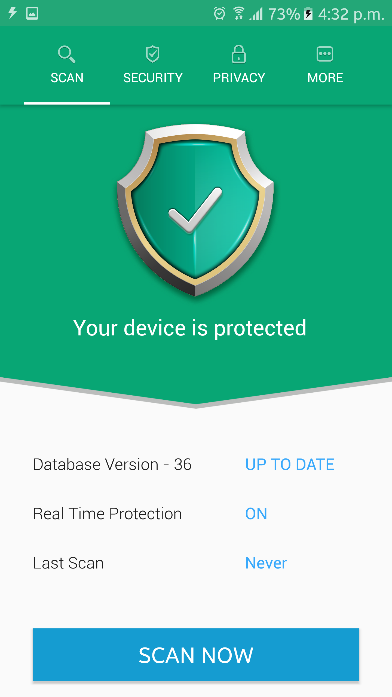
Scan: At the home page of the app, it displays the basic details about the app like database version is updated or not, real-time protection is On or Off and last scan date. It also displays green check mark to display that your device protected. If it founds any malicious content on your device, it displays red sign mark. If the database version is obsolete, then it updates it automatically once you log out and then log in the app. To turn on the real-time protection you can go to “More” option under Settings. It will help detect and update you about a malicious content app upon its installation in real-time.

Systweak antimalware

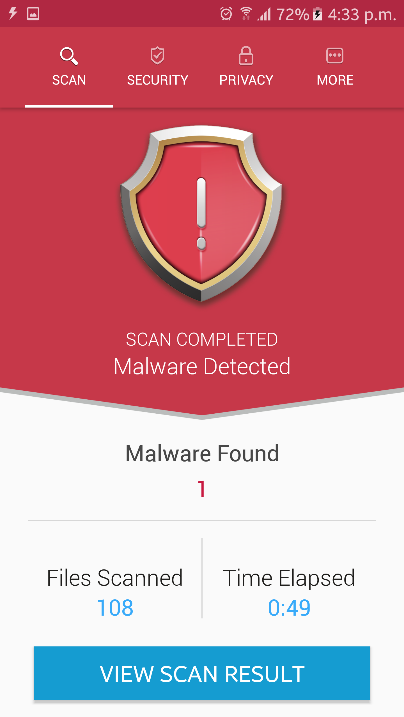
To start scanning your device and apps installed on it, you need to press “Scan Now” button. It displays results instantly with information like files scanned, time elapsed and malware found. If it doesn’t find any malicious content on your device, then it will display a green check mark with the message No Threats Detected. Else it will show a message malware Detected with a red check mark.

virus found

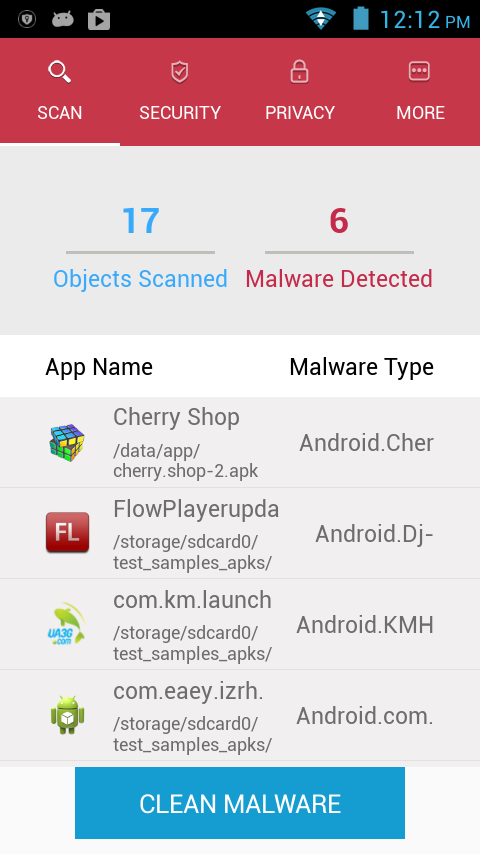
Click on “Security Checkup” button to move to next step, if it doesn’t found any malicious content. In case it has displayed a red check mark with a message showing malware detected then you need to click on “View Scan Result” button to view the scan results. Here, it will show all those malicious apps found on the device and malware type next to them. You need to swipe the malicious app to find two different options called “Uninstall” and “Whitelist”. Click “Uninstall” button to uninstall the malicious app. Whitelist option allows you to keep the app in the storage despite being found malicious. It means you are tagging that app Whitelist and consider the app as safe to keep. When being listed in “Whitelist” app will not be displayed in scan results. Alternatively, you can click on “Clean Malware” button to instantly remove all such malicious apps.

scan virus

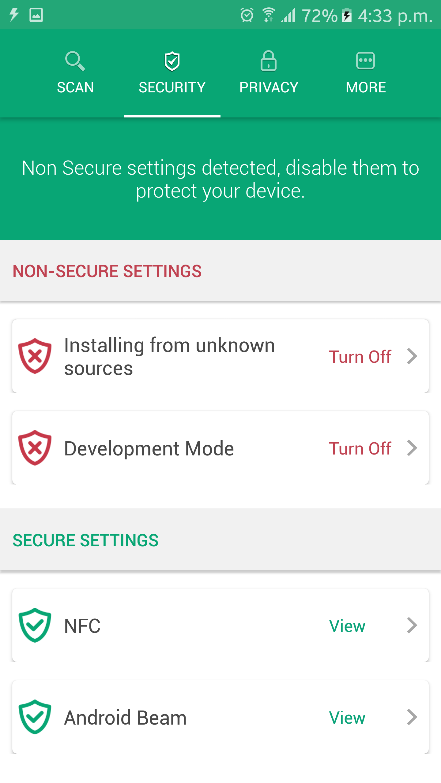
Security: Here, you can find all non-secure settings of the app, which you can disable anytime. Here you can manage below-mentioned functions.


Installing from unknown sources: If you aren’t downloading an app or anything else from official or reliable source then you can manage to download from unknown sources using this feature.

Development Mode: Turn ON or Off this feature as per your needs. By turning off developer’s mode on your device you avert a situation where anyone can mess with your developer’s settings.

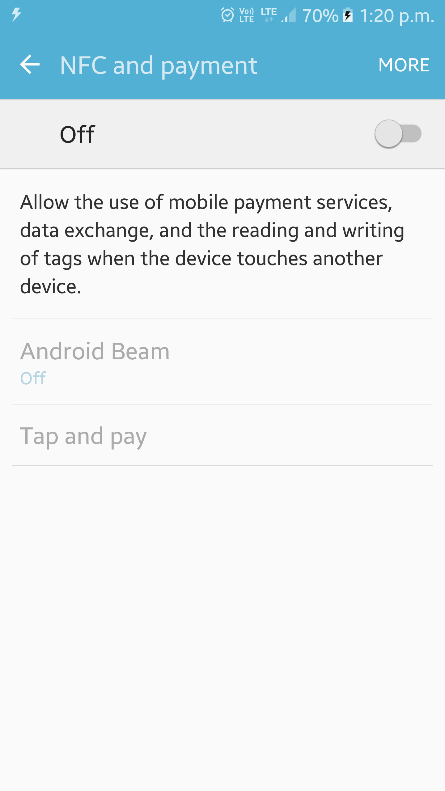
NFC (Near field communication): It helps you manage your sharing safe with other devices. NFC allow data exchange, mobile payment services and reading & writing of tags when your device touches another device.


Android Beam: It helps you manage NFC functions on your device.

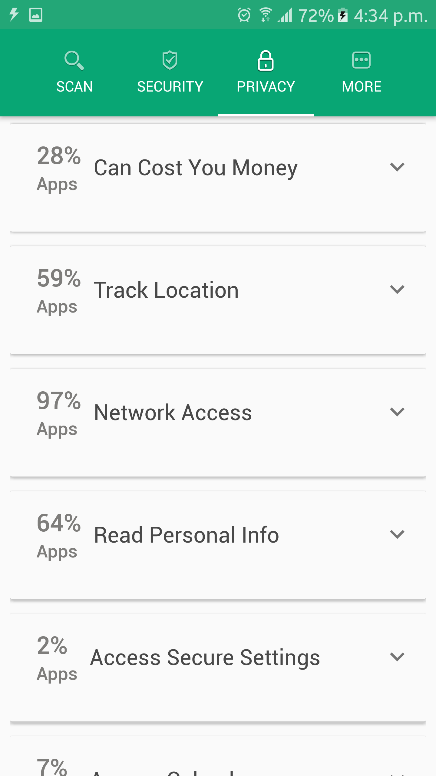
Privacy: This feature scans your device and displays the privacy status of the apps installed on it. It scans your complete apps and segregates it in different categories like which apps can cost you money, access network, track location, read personal info, access calendar, access storage, monitor call, access text messages, access accounts and control hardware. You can click on any of these apps under various categories to manage them well.


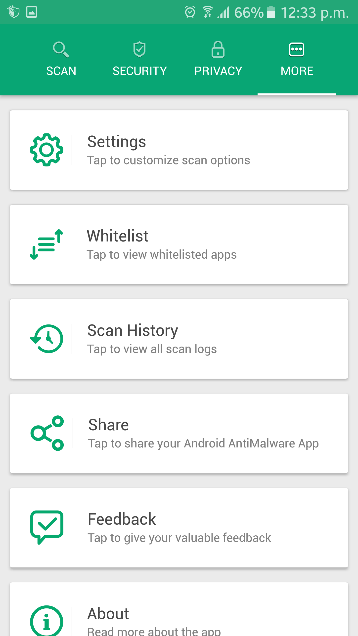
More: Here you can find below-mentioned features.


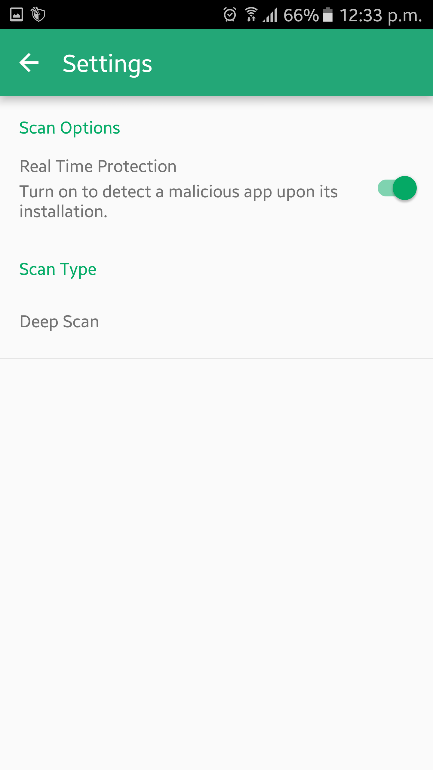
Settings: This feature allows you to customize scan options. It helps you turn on/Off real-time protection and choose from Quick and Deep Scan mode.


Whitelist: It displays all Whitelist apps. Scan history: It displays previous scan history.

Share: You can share this app via various mediums.

Feedback: Use this function to share your feedback about the app.

About: It display app information.

Verdict: Systweak Anti-Malware is designed to protect your device from all malicious threats effectively. It uses advanced algorithms to keep your device safe. It scans your complete device to find and remove all malicious content instantly. It improves your device performance significantly by removing all such malicious threats which can hamper your device performance. It even offers “Whitelist” feature to keep your personal and important apps untouched. It helps you manage privacy and security settings. We used this app for improved results and highly recommend this app.

download systweak antimalware

Top Best Security Apps for Your Android Device

The Best Security Apps for Your Android Device Android security is a hot topic and for good reason. With the amount of malware scams on the Google Play Store and the number of security vulnerabilities, companies such as WhatsApp, have taken steps to improve their app. However, these changes cannot protect your whole smartphone. For this reason, the security app market has grown significantly. Not all are created equal, however. Below are some of the best options to keep your Android device safe.
Avast! Mobile Security
Despite being a free app, Avast offers an excellent variety of tools to keep your phone safe from
malware and viruses. The antivirus protection scans apps and provides details on what they are
doing. It also has a web shield to scan sites for potential malware. There are other useful features as well, such as a useful anti-theft component that provides you with remote control of your smartphone. You can also lock individual apps behind a password or pin, which is great for the more sensitive apps, such as banking or social media. For those who have rooted their device, Avast offers a firewall to block WiFi access for specific apps. Not only does this keep your phone more secure, it also saves on battery life as well.
Malwarebytes Anti-MalwareMalwarebytes built a reputation for themselves as a lightweight yet surprisingly effective protection tool for PC. It would often detect malware more well-known brands, such as Norton, could not find. The Android version follows the same trend. Rather than offering many features, it focuses solely on privacy protection. It offers much of the same features as the PC version, such as: 
  • Detecting and deleting malware (including spyware and Trojans), 
  • Scanning malicious code and unwanted programs, 
  • Scanning for security vulnerabilities
  • Monitoring location-tracking apps
It does offer added privacy as it monitors apps that have access to data and what they share with third-parties. It then organizes all of the information into a list, and you can then enable/disable
permissions from it.
NoRoot FirewallBy far the most popular firewall app in Google Play and for good reason. It creates a mock Virtual Private Network (VPN) and then directs an app’s traffic through it. This gives you complete control over how and when an app can access the web. Why does this matter? There are a few benefits:
  • See if apps are accessing ad data
  • Prevent apps from using up bandwidth
  • Keep certain apps from accessing public WiFi
The first time an app connects to the internet you will receive a notification. From there you can
permit or deny access and then save this choice for the future. This allows you to control whether
an app can only access internet over WiFi, mobile internet or both. It can also prevent your
calendar, apps and even cloud storage services from syncing or updating until you’re on a more
secure network.
Signal Private Messenger
More often than not you want to keep messages with friends and family private. Although some
messenger apps promise anonymity and security (since they delete the messages after a certain amount of time), using Signal can add an extra layer as it provides end-to- end encryption. It’s also open source, so anyone can audit the code to verify its security. Even better, it uses your phone number and address book, so you don’t have to worry about another login. Like other messenger apps, you can create or enter encrypted group chats, making it a great way to stay in touch with friends while also keeping your conversations private. You can also make phone calls through the app without getting hit with long-distance fees!

CM Security Antivirus
CM Security offers a host of security features for free. You get an antivirus scanner, vault and lock feature for photos and apps and remote phone lock and location. What sets CM Security apart is the Intruder Selfie feature. This snaps a picture of anyone who enters the wrong password for your phone twice. That means you could also be on the receiving end of this feature if you tend to forget your password often. You can protect your privacy further with other features, such as call blocking and Safe Browsing to ensure you don’t navigate to potentially malicious sites.


Kaspersky Antivirus and Security
While the free version will still get you top-of- the-line malware protection, you’ll need to pay in if you want real-time, web and anti-phishing protection. Like other malware apps, Kaspersky scans every app immediately when you install it whether it’s from Google Play or sideloaded.
How good is its detection? The AV-Test institute reported the app detected 99.9 percent malicious apps in real-time. Malware isn’t your biggest threat, however. Theft and loss are far the biggest problems most people face. Luckily Kaspersky offers a host of anti-theft features. While you need to activate it, once it is enabled you can remotely control it. For example, you can set off an alarm and lock your screen in a few seconds. Once locked, it makes it very difficult for potential thieves to break in.
If you do pay for the anti-phishing feature, you can rest easy knowing it will block malicious sites. You only need to launch your default browser from within app to enable this feature. Best of all, it now supports Android Wear smartwatches.
There are plenty more apps available that can help protect your smartphone against potential hackers. However, the best protection is yourself. Always pay attention to what permissions an app wants to access and avoid downloading apps from unknown sources. It’s up to you to be vigilant even if you have security apps installed on your phone. How do you keep your phone secure? Do you have any favorite security apps? Let us know in the comments below.

About the Author:
Caroline Black's profile photo
Caroline is a freelance technology writer. She is especially interested in the
rise of cybersecurity and how individuals can protect their privacy in today’s connected world.

Avast Acquires AVG Antivirus App for $1.3 billion

Hahaha what is happening? Why are the mighty ones fallen apart? Just few months ago, we heard that Opera Browser was up for sale, yesterday it was Yahoo that was up for sale and now this one.... Hmmmm.

In a recent statement , Avast have agreed a deal to buy off AVG antivirus app and the deal is set to be worth $1.3 billion. while the deal will be possible via cash on hand and debt financing. Avast will be giving all of each shareholder of AVG, $25.00 per share in cash.

What Avast Is Planning To Achieve
Avast revealed that the number of users will rise to 400 million endpoints. 160 million Out of that number will be on mobile. They said that the move will help widen their geographical reach, and further solidify their stand as a top Internet Security provider. Vince Steckler, Chief Executive Officer of Avast Software made it more understandable through his speech.

“We are in a rapidly changing industry, and this acquisition gives us the breadth and technological depth to be the security provider of choice for our current and future customers,”

“Combining the strengths of two great tech companies, both founded in the Czech Republic and with a common culture and mission, will put us in a great position to take advantage of the new opportunities ahead, such as security for the enormous growth in IoT.”

Meanwhile, the whole deal is expected to close between September 15, and October 15 this year.

Beware Of Dangerous Android Phone Malware Called HummingBad

According to reports, HummingBad is another new android malware that is attacking and infecting android devices at the moment. It had already infected over 10Million Android devices all over the world and it makes around $300,000 (£232,000) Monthly for its creator. Imagine!

How Hummingbad Virus Works
It is a rootkit malware that installs itself deep inside someone's phone’s operating system to make is hard to detect and by so doing, it gives its creators overall control over the your cellphone.
When the malware is on a person’s phone, it installs apps without your consent and monitors your activities on your phone codedly. It also generate clicks for ads on your phone which is the major method it earns money for the owner.

How To Know if Your Android Cellphone is Infected By HummingBad Malware
1. Your phone starts showing strange advertisements
2. You start running out of data more quickly than before
3. You start receiving unnecessary system updates frequently while other people using the same make of phone is not receiving
4. Some unusual pics appearing on your phone
5. Constant prompts to install a new app
6. Finding apps on your phone which you didn't install
7. Finally, your battery start draining much quicker.

How To Protect Your Android Phone From Being Infected By Hummingbad Malware
You can use any of the below security apps.
1. Download Avast anti virus
2. Download CM security
3. Download Lookout Security Sofware
4. Or use 360 Security software and they will detect the presence of the Malware. Remember to always update your Antivirus apps.

How To Remove Hummingbad Malware From Your Phone
Too bad. The malware is very dangerous and hard to remove that's why Antivirus apps and software can't remove it. They only detect but can't delete so the best option is to factory reset your infected android phone.

How To Reset Your Phone
1. Create a backup of the data and content on your phone or tablet.
2. On your infected phone or tablet, tap on Settings > Backup and reset > Factory Data Reset. The location of Backup and reset will differ on various Android phones and tablets, but it will be relatively easy to find.
3. Tap Reset phone or Reset device. Your device will reboot in Recovery mode and will start wiping your infected phone or tablet.
4. Once your phone or tablet reboots you can start the setup of your HummingBad-free device.

READ ALSO 📖

Meet Xbot, The Virus That Hijack Your Android Phone Without Your Consent

Checkout The Best Antivirus App For Your SmartPhone


Another Method which works very fine is to flash custom ROM of your phone and the malware will be gone for good. Stay safe!

How To Remove Computer Virus Manually Without Antivirus Software

I published a similar post some months back and it saved a lot of readers on this site from many common virus attacks. An Antivirus software is one of the compulsory software any PC user should install on his or her computer but some people shy away from it because most of them are not free of charge and the free ones are not that strong 💪 in detecting viruses.

Another drawback in Antivirus software is that, it will make it hard for you to run a cracked software on your computer because these Antivirus apps see those cracked files as Malware. Example of this is when trying to install gaming software like PES or a cracked version of Autocad. The only way you can have this apps installed is to put them on ignore list or uninstall the Antivirus which in turn leaves your computer vulnerable to attacks.

So to save yourself from all those stuffs, you can easily use the alternative of removing viruses manually via command prompt.

NOTE
This method of removing virus is just an alternative. It can even remove some viruses that a normal virus app won't detect. There was a day i came across a shortcut virus on one of my laptops. The virus turns all my files into shortcuts and thereby making them not accessible. After trying many Antivirus softwares but couldn't fix it but this method was what i used to remove the stubborn virus successfully. Meanwhile, there are other viruses this method will not remove. Follow me as i walk you through the lane of removing viruses with command prompt.

READ ALSO

Meet The Virus That Hijacks Your Bank Details And Hold You On Ransom

Best Antivirus App For SmartPhones

See How To Remove Dangerous Monkey Test And Time Service Malware


How To Delete Computer Virus Without Antivirus App

Step 1
On your computer, click on start menu, and search for cmd

Step 2
Having done that, right click on the command prompt icon, and run it as administrator. (am aware you know how to do that)

Step 3
As soon as the command prompt window opens, choose the drive you wish to remove or wipe virus from. I will assume it's drive D


Step 4
Now all you need to do is to type the below command and click enter.

attrib -s -h /s /d *.*

Step 5
Having done that, type the below command and click enter. You will see all the file contents on the drive displayed with this command.

Step 6
Finally, if you notice any strange file.exe or any autorun.inf, on the list, just rename with the command (rename filename.extension newfilename).

With this method, you can easily remove all those autorun viruses that are common on memory cards. If you want to remove a virus from a memory card, insert the memory card in a card reader use this same process. Remember to note the drive name for your SD card.

So guys, that is it for today. Keep checking on this site for other important tips to keep you safe and enjoy your gadgets even more.

Another Android Malware That Steas Your Bank Details Is Going Viral. Beware!!!

Just last month, we got reports that tens of thousands of Android phones has already been infested with Monkey Test Malware and this time around another one named Spy.Agent.SI have surfaced, tormenting Android devices.

The malware is targeting 20 of the largest banks in New Zealand, Australia, and Turkey, also it can be tweaked and programmed to affect more devices from any part of the world. It locks up your device's screen unless users give up their login credentials. This dangerous malware can also capture text authentication codes sent out by different banks.

According to researchers at the Slovakian security firm ESET say they have discovered a new strain of malicious Android software called Spy.Agent.SI that could be mainly dangerous to phone users.

MUST READ Beware of Xbot Virus. It Hijack your banking details

HOW IT WORKS
The developers of the malware disguised it as a version of Adobe Flash Player, which is popularly known as a tool that runs video and animations on Internet browsers.
Just like every other deadly virus that affects Android devices, Spy.Agent.SI mostly affect users that download applications and software from unsecured, unknown and unofficial third party websites or mobile app markets other than Google Playstore.

Once it infects your device, it continue to spread in all over the memory space on your phone and multiplies itself. Whenever you are doing something on your phone like bank transactions or any other sensitive activities, it will decide to lock your phone screen and only reopens it after you have provided your private details. See similar Malware that uses this TRICK too here

To check if this virus is already on your phone at the moment, kindly search for Spy.Agent.SI in your app manager. For a better result, use titanium backup application to search for it and delete it immediately if you find the malware.

Stay Safe!!!

Source

Best Anti-Virus Application For Your Android And Tablets

Hello readers, are you among those  that frequently complain about their phone been infested with viruses and malware even when there is an anti-virus application installed in your phone? Is your SD card (memory card) always crashing and hanging when you operate your phone?


A friend of mine bought a new smartphone that has an anti-virus pre-installed on it, however, the funny but interesting thing was that my friend’s smartphone actually had some viruses running in the phone unknowingly to him. He thought he was secured because he has an anti-virus pre-installed in his new smartphone but never knew that his so called pre-installed anti-virus has limitations and can't detect all viruses.
Today am going to be revealing to you the best ant-virus app I have found after testing virtually all the ones in the Google Playstore. I installed this particular anti-virus in my friend’s phone and he was extremely surprised to see that really his phone has some hidden viruses and security issues other anti-virus couldn’t detect.

I know your eyes are so glued on your screen at this point to know this awesome security application that will guarantee your mobile phone over 98% protection from viruses, intruders, loss of files, loss of your device, etc. Ladies and gentlemen, I wishes to introduce to you the best tested and verified android and tablet anti-virus application by name CM SECURITY. Yes CM security is the name and if you are already using it in your smartphone, you are 98% safe…smiles.


But what actually is CM security and what makes it different from other anti-virus applications in the Google playstore? Sit firmly and let’s ride on.


MUST READ... How To Remove Monkey Test Malware On Your Phone


FEATURES OF CM SECURITY ANTI-VIRUS


1.      It is FREE at the Google playstore. You don’t have to pay a dime to download it straight to your smartphone. Great right? We haven’t started yet.


2.      CM security is ranked number one by AV-TEST, an independent organization that conducts regular appraisals of all anti-virus products on the market.


3.      CM security has a vault feature which allows you to hide your photos from other people


4.      It has an intruder selfie feature which allows it to secretly snap someone that enters your password wrongly twice…great!


5.      It is like a cctv camera especially for an intruder that wants to assess your chatting applications like Whatsapp and Facebook without your consent


6.      It has a professional app locker. With this you can lock any chosen app on your phone so that people won’t use without your consent


YOU MAY LIKE: How To Use Your Smartphone As Modem


7.      CM security has over 100 million users and it supports 27 languages


8.      With app lock feature, you can lock your contact list, Facebook, twitter, Whatsapp, email etc from prying eyes and noisy friends


9.      It is powered by both local and cloud engines; you can back up your contacts with CM security cloud


10.  It fixes system vulnerability and scan new files, apps and websites you visits to ensure device safety and your privacy in real time


11.  It is a smart system cleaner. This feature helps you clean up junk files in your phone and speeds up the performance of your smartphone


12.  It takes just seconds to wholly scan your phone


13.  It is compatible with both phones and tablets


14.  Anti-Theft! Oh yes. You heard me right. It has a free “find my phone” feature to locate your stolen phone anywhere in the world map


15.  Scan external SD cards thoroughly to detect and delete threats


16.  It prevents harm to your device with real-time scanning of new applications and updates


17.  It performs automatic scheduled scanning for passive security


18.  Wow!!! Call blocking feature. It helps you block unwanted calls


19.  Safe browsing; it blocks malicious URLs and protects against phishing websites with instant warning notifications


20.  All these features are FREE OF CHARGE


You see why this anti-virus application has no rival. Tested and trusted.

Click here to download and install cm security


Never miss any future post from WizyTechs anymore, CLICK HERE TO SUBSCRIBE NOW to get instant updates next time on my new wonderful post. Once you 
enter your email, you will have to check your inbox for a confirmation message containing a confirmation link. Once verified, you will never miss any future updates or articles. Like us on facebook and Follow us on Twitter

Hope this info helps? Then share this post with your friends using the Facebook Share/Like/tweet icons below. You can share your thoughts by using the comment box

How To Remove Dangerous Monkey Test And Time Service Malware From Your Phone

Is your Android phone displaying annoying pop-up ads on the screen after you exit from one application to the other? Are you seeing strange application being installed on your phone without your consent? Are you seeing some strange pictures of nüûdé ladies on your phone screen? If your answer to these questions is yes, then you are affected by this trending malware in town.

HOW IT WORKS
Monkey Test virus gets into your phone from unsecured websites and webpages that carry malware. Sometimes it comes through some applications that you installed from unknown sources. This happens without your knowledge because it won't inform you that it is about to come into your device so you will be enjoying what you are doing online until it gets into the medullar of your device.

Once your phone is infected, it will start spreading all over your phone. From memory card to your phone internal memory and create invisible partitions and small files on almost all folders on your phone without your knowledge. You will start noticing it when your phone screen starts dancing shokiti bobo by displaying un-invited ads. Most of the ads are nuuuude photos. Another noticeable change you will see on your phone is the installation of strange and new applications.

MOST LIKELY WAYS TO GET INFECTED BY THIS MALWARE
The most active place to get this malware on your phone is via p..ôrn sites. When you download all those blue movies, you are indirectly welcoming the malware to your phone. Another method to get it is by downloading apps from unknown sources.

Someone gave me his phone last month to check what is wrong on it. He told me his phone gets ads to the extend that it won't let him type things easily from his phone as the ads keep popping up. I noticed immediately that it is monkey test malware. I asked him if he downloaded blue films recently online and he said yes. So I will share with you guys how I removed the stubborn malware because it is very difficult to get rid of even after doing factory reset on the phone.

FIRST METHOD
Requirements
* You must root your phone
* Download Titanum back up HERE

OR download titanium backup PRO here
if you don't have it already on your device.

==>After downloading Titanum back up pro, install it and Tap back up and restore>>then click monkey test and time services


==> freeze the monkey test by clicking on Freeze


With the above, titanium backup application will automatically freeze the malware and disables its controlling power from pestering on your device.

To make your phone more secured,
==> Navigate to settings>>Security>Uncheck unknown souces


READ... Best Anti-Virus Apps To Use On Your Android And Tablets


==> Also Navigate to settings>Security>Slide on or switch ON app permission so that no apps will auto install itself.


SECOND METHOD
Flashing Stock or Custom ROMs
This is the last hope of any phone that has malware or virus issues that refuses to get solved. Flashing of a new custom or stock ROM will definitely fix the issue. So even if the virus is a big time wizard and refuses to leave your phone, kindly flash a new ROM.

I hope this helps.
Have you faced this kind of issues before on your phone? Let us know using the comment box below.